> ## Documentation Index
> Fetch the complete documentation index at: https://docs.anygen.io/llms.txt
> Use this file to discover all available pages before exploring further.
# AnyGen Browser Operator
> Make your browser smarter. Make every task smoother. Bring what’s in your browser into AnyGen tasks — with a toggle you control anytime.
***
 ## Why you might need it
### **Sometimes results are off ?**
Not because the model is weak, but because it’s missing the real context that lives in your browser:
* Pages are long and noisy → copying and pasting is slow (and easy to miss details)
* Content is dynamic or buried behind UI → manual extraction is painful
* The source of truth is the exact page you’re viewing → accuracy depends on that view
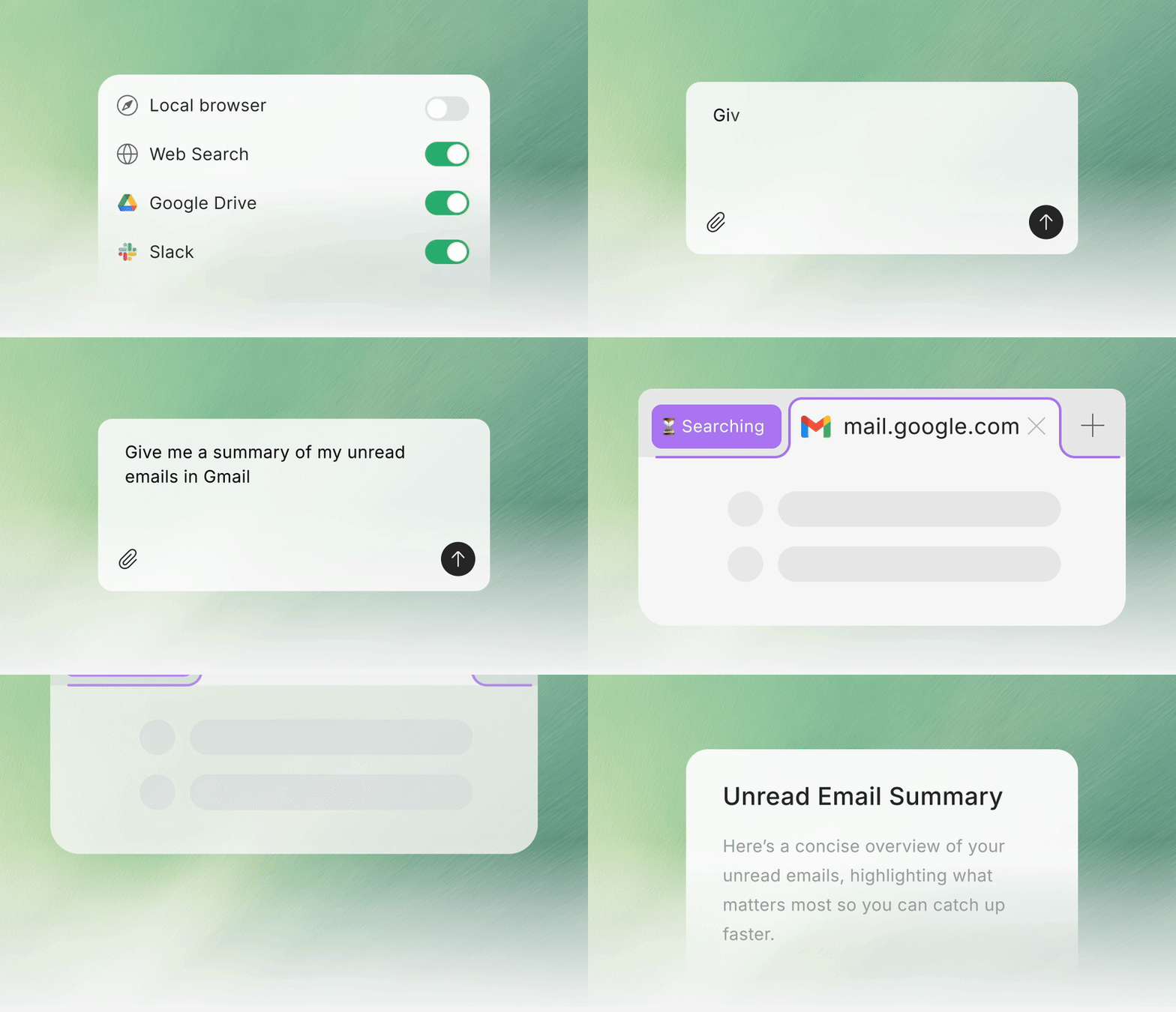
***With My browser, you can pull browser content into a task as context — right inside AnyGen.***
Summarize, rewrite, translate, compare, or draft based on what you’re viewing.
Turn page content into tables, key points, checklists, or takeaways.
Less copy/paste, fewer follow-up edits.
### Stuck at login or verification?
When a task needs content behind a login or access checks, running through a cloud environment can get blocked or interrupted.
***AnyGen Browser Operator***\_ runs through your **local browser session** using your **local network and real IP**, which helps tasks stay uninterrupted on sites with strict access controls.\_
Fewer stops from access checks or blocked cloud IPs.
Leverage the sites you’re already signed into — without repeatedly re-authorizing.
***
## Safety & control
AnyGen Browser Operator does not read, collect, or upload your passwords.
When you sign in, it doesn’t access or store password inputs.
You stay in control: enable it only when you need it
Toggle anytime: turn My browser on/off in the task, or disable it in Connectors
***
## Get started
### 1) Download & enable
Go to **AnyGen Home → Connectors**, find **My browser**, then **Install and enable** it.
## Why you might need it
### **Sometimes results are off ?**
Not because the model is weak, but because it’s missing the real context that lives in your browser:
* Pages are long and noisy → copying and pasting is slow (and easy to miss details)
* Content is dynamic or buried behind UI → manual extraction is painful
* The source of truth is the exact page you’re viewing → accuracy depends on that view
***With My browser, you can pull browser content into a task as context — right inside AnyGen.***
Summarize, rewrite, translate, compare, or draft based on what you’re viewing.
Turn page content into tables, key points, checklists, or takeaways.
Less copy/paste, fewer follow-up edits.
### Stuck at login or verification?
When a task needs content behind a login or access checks, running through a cloud environment can get blocked or interrupted.
***AnyGen Browser Operator***\_ runs through your **local browser session** using your **local network and real IP**, which helps tasks stay uninterrupted on sites with strict access controls.\_
Fewer stops from access checks or blocked cloud IPs.
Leverage the sites you’re already signed into — without repeatedly re-authorizing.
***
## Safety & control
AnyGen Browser Operator does not read, collect, or upload your passwords.
When you sign in, it doesn’t access or store password inputs.
You stay in control: enable it only when you need it
Toggle anytime: turn My browser on/off in the task, or disable it in Connectors
***
## Get started
### 1) Download & enable
Go to **AnyGen Home → Connectors**, find **My browser**, then **Install and enable** it.
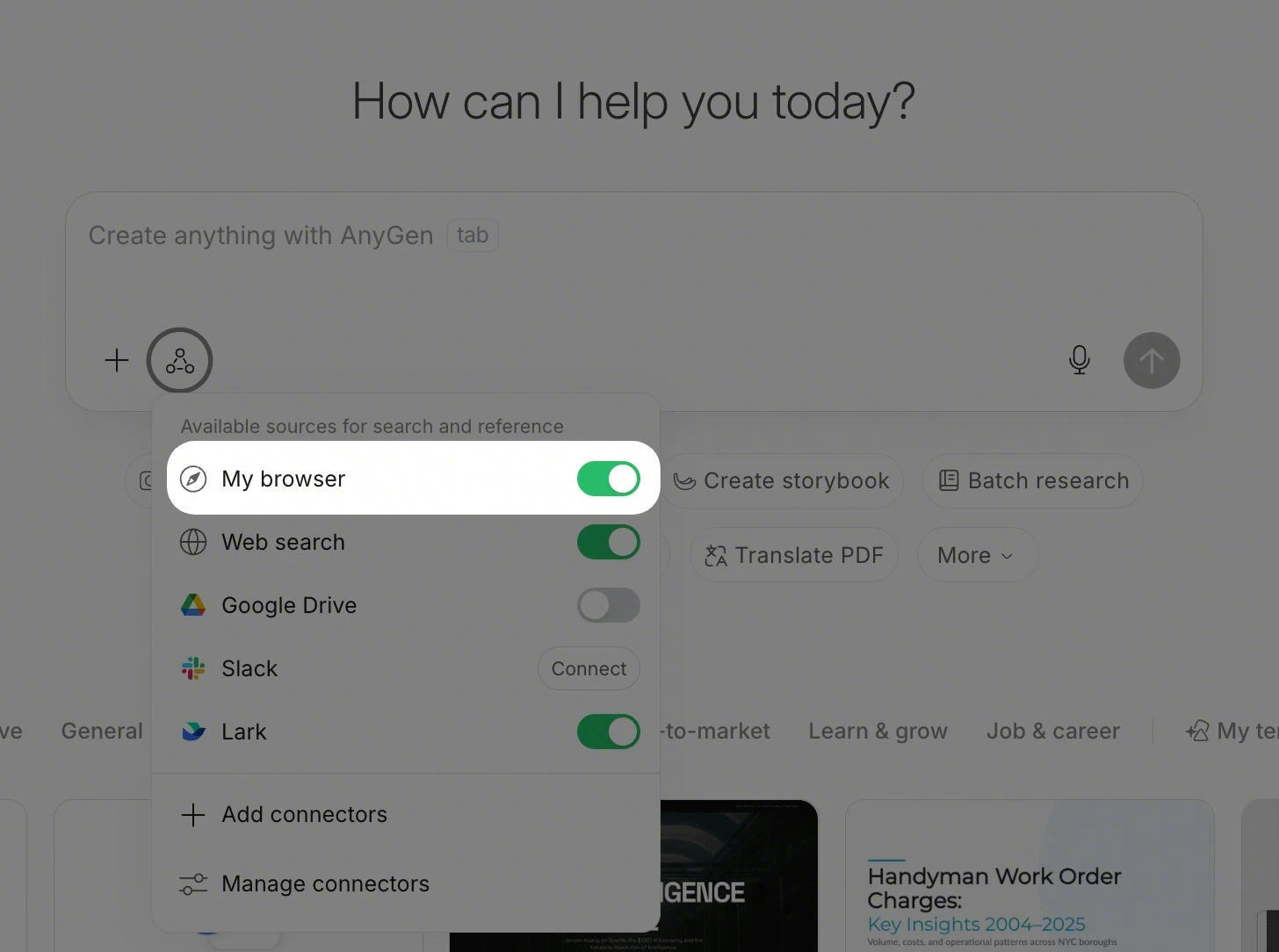 ### 2) Turn on “My browser” in a task
In any AnyGen task:
1. Open the sources menu
2. Toggle **My browser** on
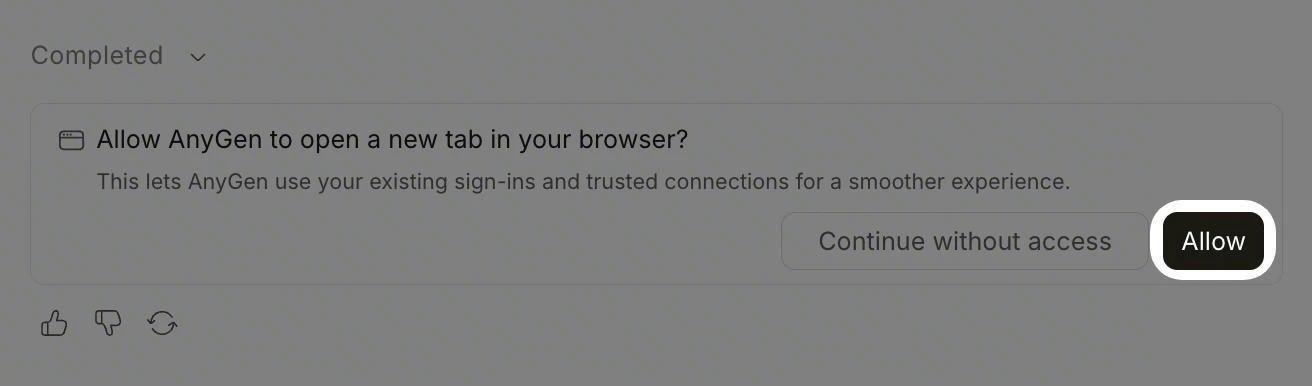
3. You’ll see an in-task prompt like:
> **Allow AnyGen to open a new tab in your browser?**\
> This lets AnyGen use your existing sign-ins and trusted connections for a smoother experience.
4. Click **Allow** to grant access (or choose **Continue without access**)
### 2) Turn on “My browser” in a task
In any AnyGen task:
1. Open the sources menu
2. Toggle **My browser** on
3. You’ll see an in-task prompt like:
> **Allow AnyGen to open a new tab in your browser?**\
> This lets AnyGen use your existing sign-ins and trusted connections for a smoother experience.
4. Click **Allow** to grant access (or choose **Continue without access**)
 :::tip If you don’t see **My browser**, open **Add connectors** or **Manage connectors** and make sure **AnyGen Browser Operator** is enabled. :::
### 3) Optional: Install from the Chrome Web Store
```text theme={null}
https://chromewebstore.google.com/detail/anygen-browser-operator/emkcncalbjlddkafaipjclhmmadeoidl
```
## Example prompts
(Copy and paste these into AnyGen)
* **Email triage:** “Open my email, find messages I should reply to this week, draft 5 short replies, and assign a priority.”
* **Internal systems:** “In my logged-in Lark/enterprise system, find last week’s approval records, extract key fields, and summarize them in a table.”
* **Job search:** “On the listings page, filter by Remote / Full-time / Salary range, extract the top 20 roles, and write a comparison summary.”
* **Order lookup:** “Open my orders page, find the monitor order from last month (order number + invoice info), and format it as copy-ready text.”
* **Link roundup:** “For this list of links, open each page and extract title/author/date/key points, then generate a one-page summary.”
***
## FAQ
### Does it cost extra?
No. **AnyGen Browser Operator is available to all users.**
### Can AnyGen see my passwords?
No. **AnyGen Browser Operator does not read, collect, or upload your passwords.**
### Can I turn it off anytime?
Yes. Toggle **My browser** off in the task sources menu, or disable it in **Connectors**.
### When is it most useful?
Tasks that require:
* an existing login session
* cross-site workflows
* repetitive web steps
* extracting page data into structured outputs
:::tip If you don’t see **My browser**, open **Add connectors** or **Manage connectors** and make sure **AnyGen Browser Operator** is enabled. :::
### 3) Optional: Install from the Chrome Web Store
```text theme={null}
https://chromewebstore.google.com/detail/anygen-browser-operator/emkcncalbjlddkafaipjclhmmadeoidl
```
## Example prompts
(Copy and paste these into AnyGen)
* **Email triage:** “Open my email, find messages I should reply to this week, draft 5 short replies, and assign a priority.”
* **Internal systems:** “In my logged-in Lark/enterprise system, find last week’s approval records, extract key fields, and summarize them in a table.”
* **Job search:** “On the listings page, filter by Remote / Full-time / Salary range, extract the top 20 roles, and write a comparison summary.”
* **Order lookup:** “Open my orders page, find the monitor order from last month (order number + invoice info), and format it as copy-ready text.”
* **Link roundup:** “For this list of links, open each page and extract title/author/date/key points, then generate a one-page summary.”
***
## FAQ
### Does it cost extra?
No. **AnyGen Browser Operator is available to all users.**
### Can AnyGen see my passwords?
No. **AnyGen Browser Operator does not read, collect, or upload your passwords.**
### Can I turn it off anytime?
Yes. Toggle **My browser** off in the task sources menu, or disable it in **Connectors**.
### When is it most useful?
Tasks that require:
* an existing login session
* cross-site workflows
* repetitive web steps
* extracting page data into structured outputs