
This guide explains how to use the Extract from Link feature to import web pages or Feishu / Lark cloud documents into your AI assistant’s knowledge base.
Entry Point
On the AI assistant’s Knowledge Base edit page, click Extract from Link. A dialog appears:- Title: Extract from Link
- Supported: web links, Feishu / Lark cloud document links
- Input: paste the target link
- Hint at bottom: Feishu / Lark wiki links extract up to 1000 documents
Knowledge Base Capacity Limits
Per-assistant knowledge base limits (apply to both Extract from Link and Upload File):Supported Link Types
Unsupported Content
How to Import a Single Feishu / Lark Cloud Document
1
Open the document
Open the target Feishu / Lark native document or uploaded file cloud document in your browser.
2
Copy the URL
Copy the full URL from the address bar (e.g.
https://xxx.feishu.cn/docx/... for a native doc, or https://xxx.feishu.cn/file/... for a file cloud document).3
Open Extract from Link
In AnyGen, open the AI assistant’s Knowledge Base → click Extract from Link.
4
Paste the link
Paste the link into the input box.
5
Click Add
Click Add. The content is added to the assistant’s knowledge; the AI will reference it automatically.
How to Import a Feishu / Lark Wiki
Two methods, choose based on your use case:Method 1: Wiki Node Link Import (single node)
Use this when you want to import a single wiki node as a knowledge document.1
Open the wiki
Open the target wiki in Feishu.
2
Find the node
Find the node you want to import.
3
Copy the node link
Copy that node’s link (e.g.
https://xxx.feishu.cn/wiki/...).4
Paste and add
Paste it into the Extract from Link dialog, click Add.
5
Single node only
The system crawls only this node — it does not recurse into descendants. To import the entire wiki, use Method 2.
Method 2: Global Wiki Import (up to 1000)
Use this when you want to import an entire wiki from the root in one go.1
Open the wiki
Open the target wiki in Feishu.
2
Click Share Wiki
Click Share Wiki in the lower-left.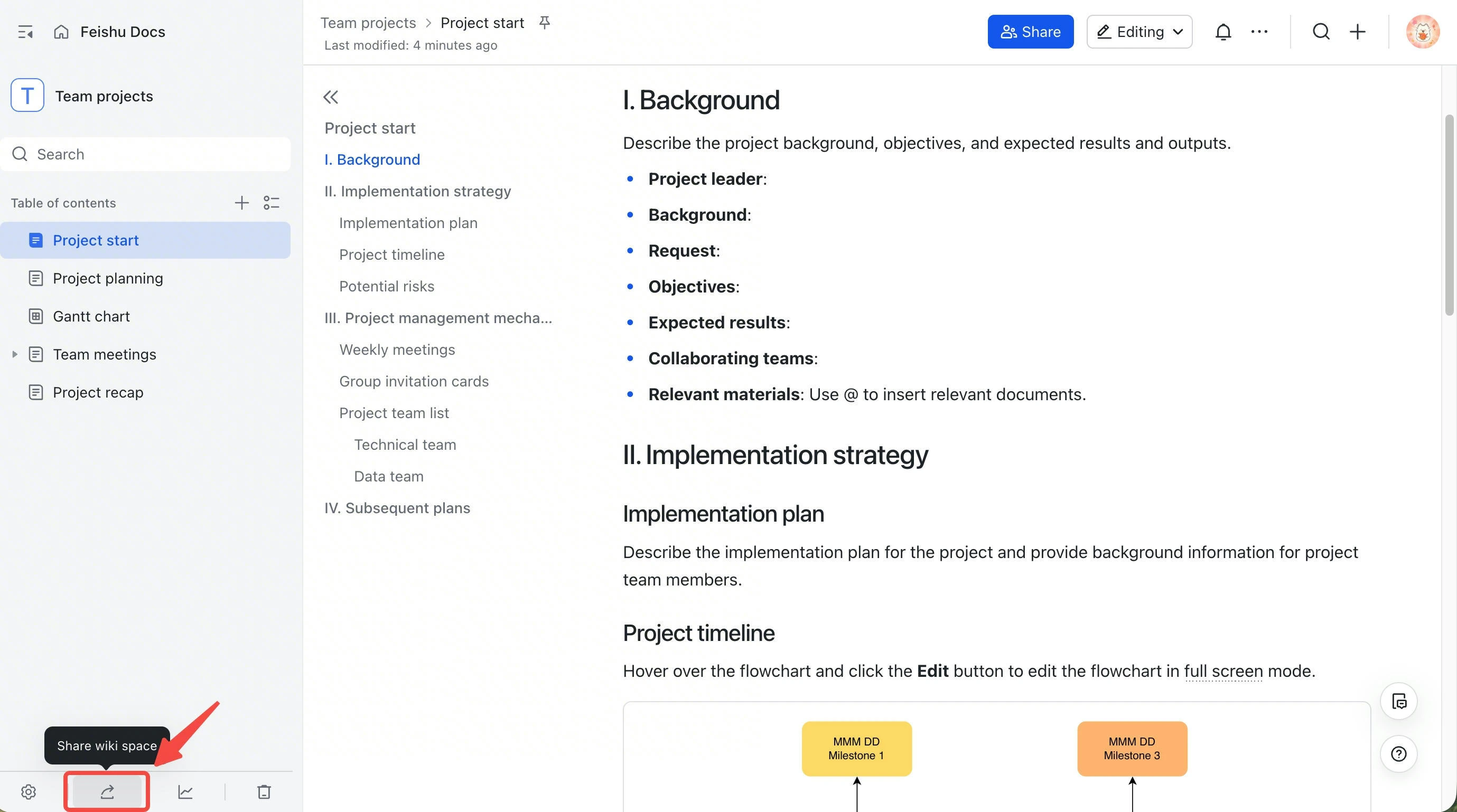
3
Copy the global share link
Copy the generated global share link (e.g. 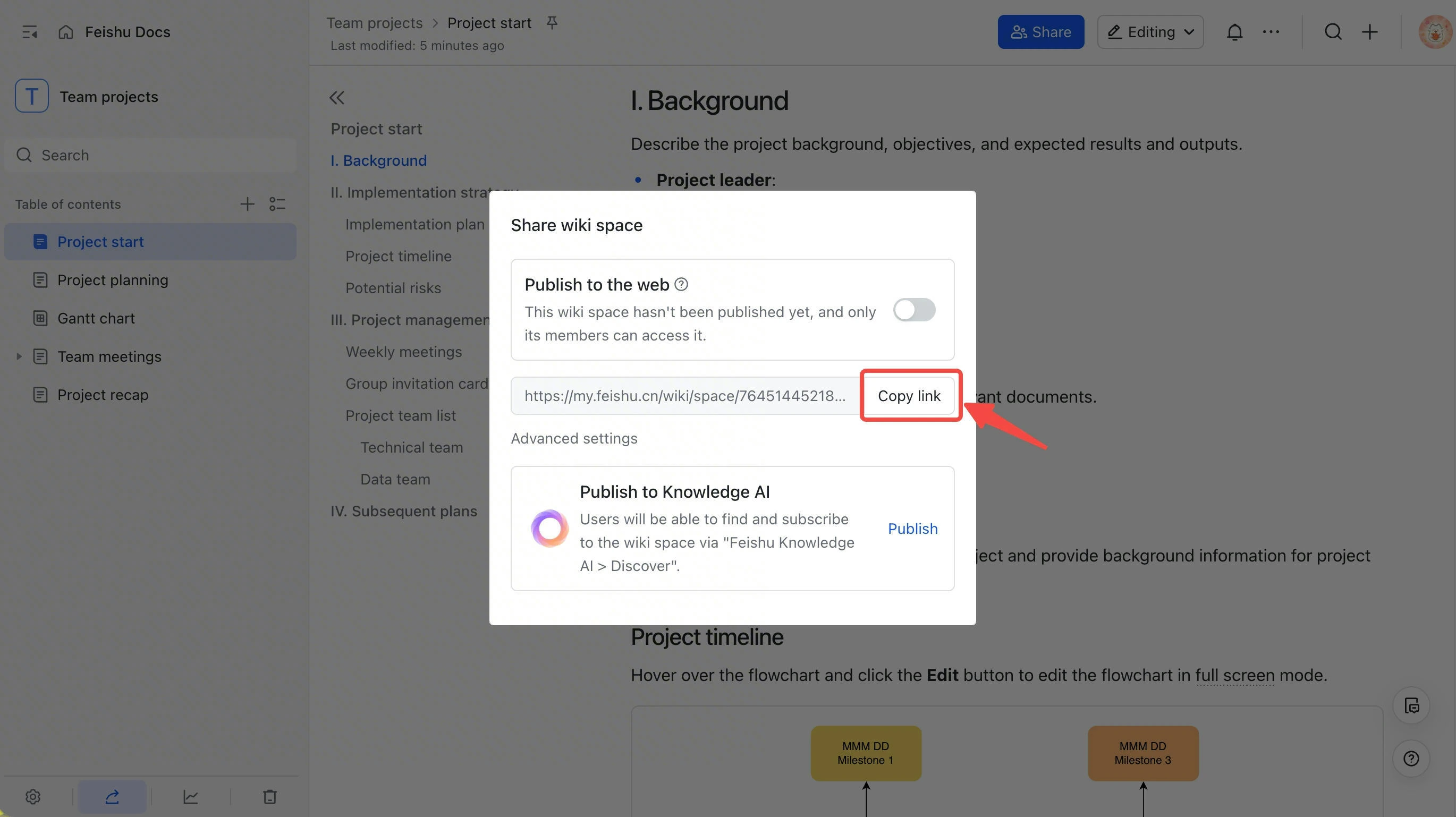
https://my.feishu.cn/wiki/space/...).4
Paste and add
Paste it into Extract from Link, click Add.
5
Bulk crawl
The system detects it as a global wiki link and crawls all documents, up to 1000.
Permissions (Important)
Recommended Steps
- Confirm the Feishu account currently signed in to AnyGen can open the target document / wiki in Feishu.
- If you can’t open it, request read access from the document / wiki owner.
- Once you can open it, copy the link and paste it into the Extract from Link dialog.
FAQ
Q1: After pasting, it says "Please enter a valid link"
Q1: After pasting, it says "Please enter a valid link"
The link doesn’t match URL format. Check:
- The URL is copied in full from the browser address bar
- Starts with
http://orhttps:// - No stray punctuation or whitespace
Q2: Submission fails with a fetch error
Q2: Submission fails with a fetch error
The most common cause is insufficient permission: Feishu content requires the current signed-in user to have Feishu read access; generic web pages must be openable without login.Investigation order:
- Can you open it in Feishu? Open the link in your browser with the same Feishu account currently signed in to AnyGen and confirm you can read it.
- Child-node permission (global link / Method 2 only): see the wiki child-node permission note under Permissions above.
- Link type: confirm it’s not a WeChat article, or a native Feishu / Lark Slide (created in Feishu / Lark).
- Network reachability: for web links, confirm the page is reachable on the public Internet (not an intranet-only domain).
Q3: My wiki has more than 1000 documents but only 1000 were imported
Q3: My wiki has more than 1000 documents but only 1000 were imported
A global share link (
my.feishu.cn/wiki/space/...) imports up to 1000 documents per call. If your wiki exceeds 1000 documents, suggestions:- Split the content into multiple sub-wikis, generate a global share link for each, and import them one by one.
- Or pick the 1000 most-referenced documents, organize them into a new wiki, and import that.
Q4: A web page is only partially crawled
Q4: A web page is only partially crawled
Pages that rely on JavaScript rendering (SPAs, login-required, paywalled) are unreliable. Suggestions:
- Copy the content into a Feishu cloud doc first, then import via the Feishu link.
- Or directly upload a PDF / Word / Markdown file.
Q5: Does AnyGen auto-sync after the source Feishu Doc/Sheet/Base updates?
Q5: Does AnyGen auto-sync after the source Feishu Doc/Sheet/Base updates?
Feishu Docs, Sheets, and Base all support an Auto Sync option. On the assistant’s Knowledge Base page, find the Auto Sync config and turn it on — the system will periodically re-crawl the latest content.
Q6: Can I import a PPT / Excel / PDF that I uploaded to Feishu / Lark?
Q6: Can I import a PPT / Excel / PDF that I uploaded to Feishu / Lark?
Yes. An uploaded file is stored as a file cloud document (
/file/... link) and can be imported via Extract from Link. This differs from a native cloud document Slide created directly in Feishu / Lark, which is not supported — see Unsupported Content above.