

1. What is AnyGen Business Plan?
AnyGen Business Plan lets you manage resources at the organization level. Your organization owns a pool of monthly credits. As an Owner or Admin, you allocate credits to teams, invite members, and members then use credits within the limits of the teams they belong to. All of this happens in the Admin Center. In short: the organization owns resources -> teams receive allocated credits -> members are invited -> members use credits from their team allocation.2. Key concepts
3. Open the Admin Center
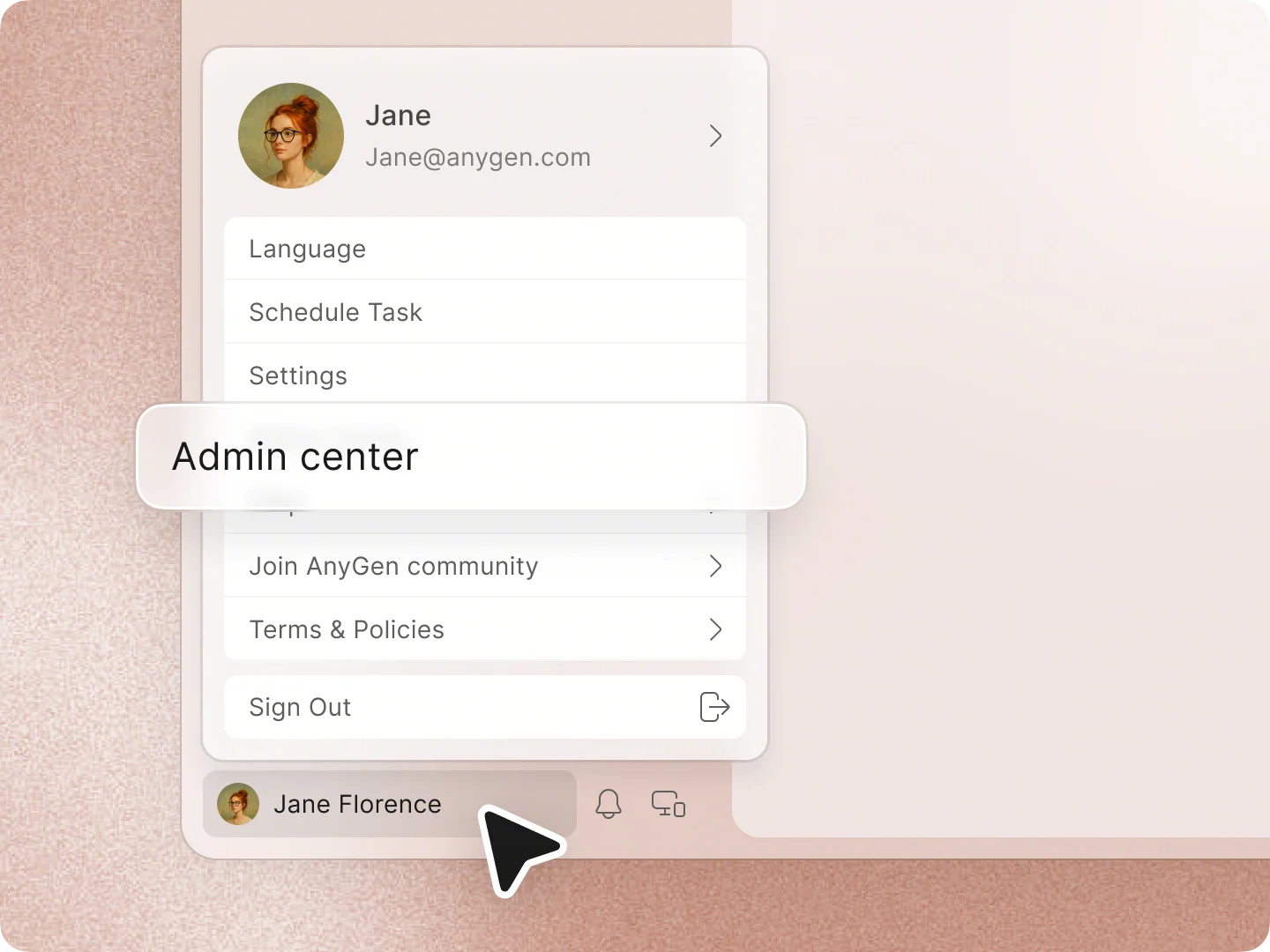
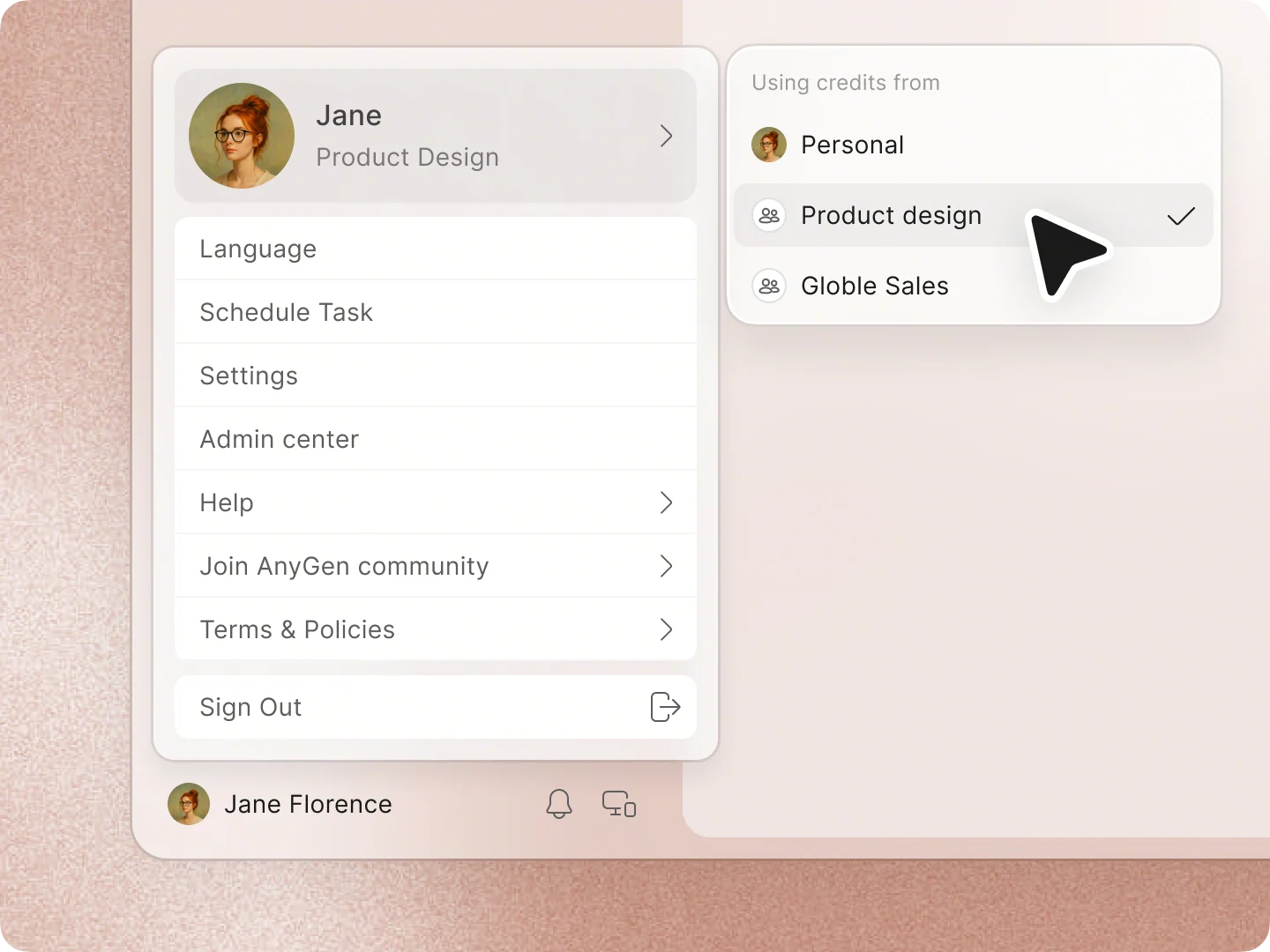
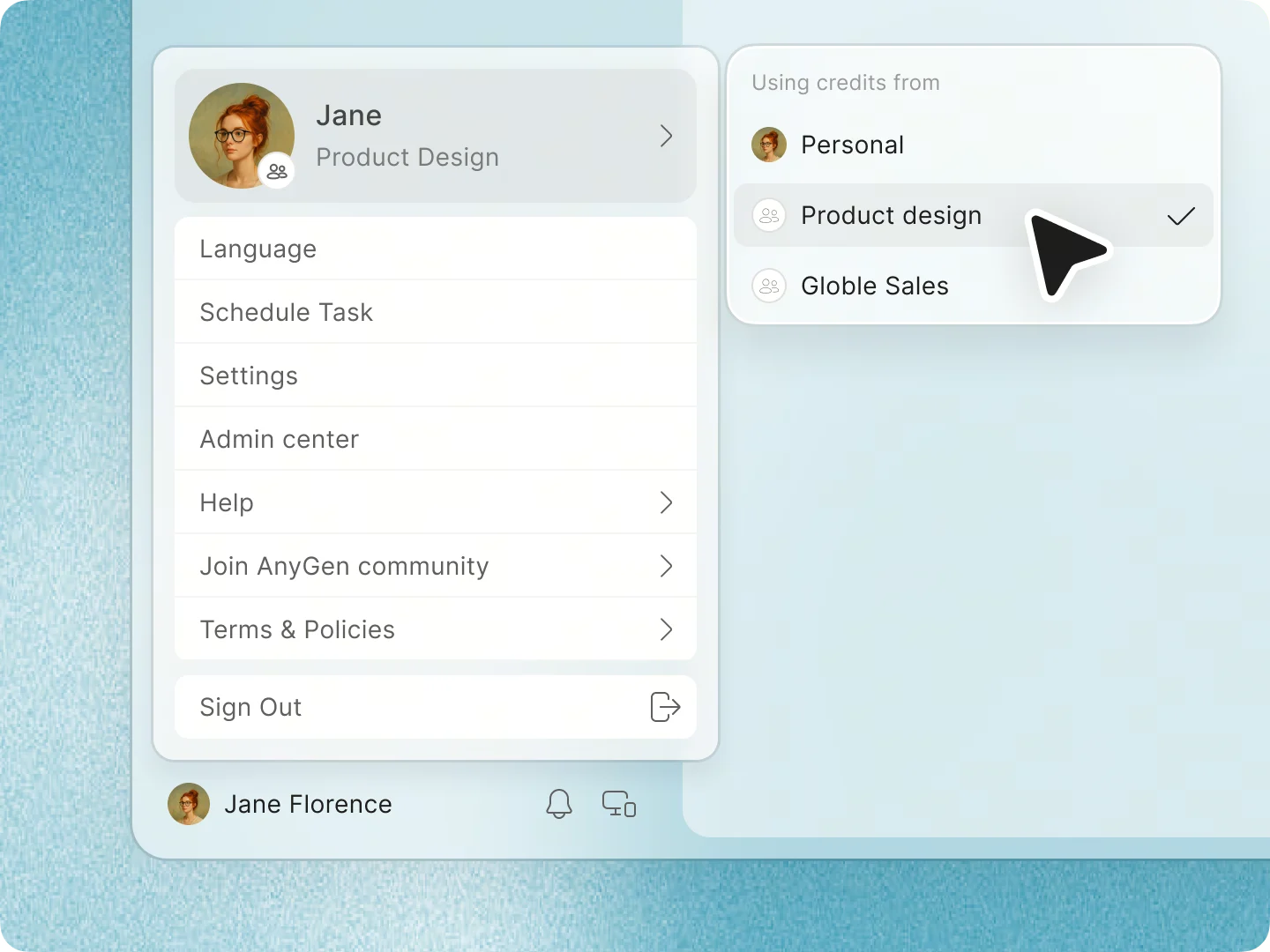
Click your avatar in the lower-left corner, then select Admin center. This option is visible to Owners and Admins. Inside the Admin Center, the left sidebar includes three main entries: Organization, Billing, and Teams. Use Back in the upper-left corner to return to your workspace.Tip: If you do not see the Admin Center entry yet, switch your credit source to your team from the avatar menu first. See section 7.
4. Manage your organization
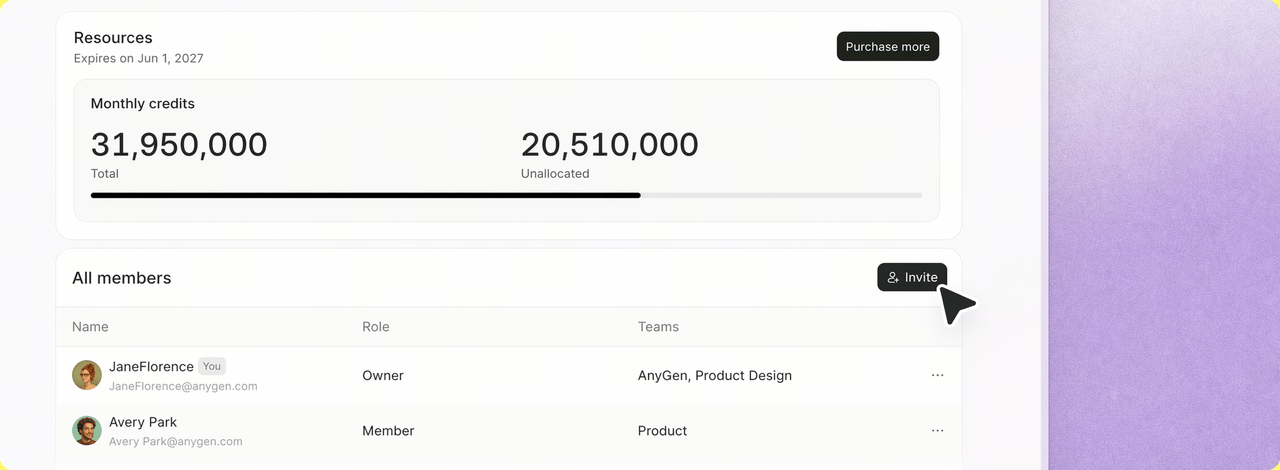
1. View and purchase resources
- Resource overview: View total and unallocated monthly credits, along with the expiration date.
- If you need more credits, click Purchase more in the upper-right corner.
2. Manage members and roles
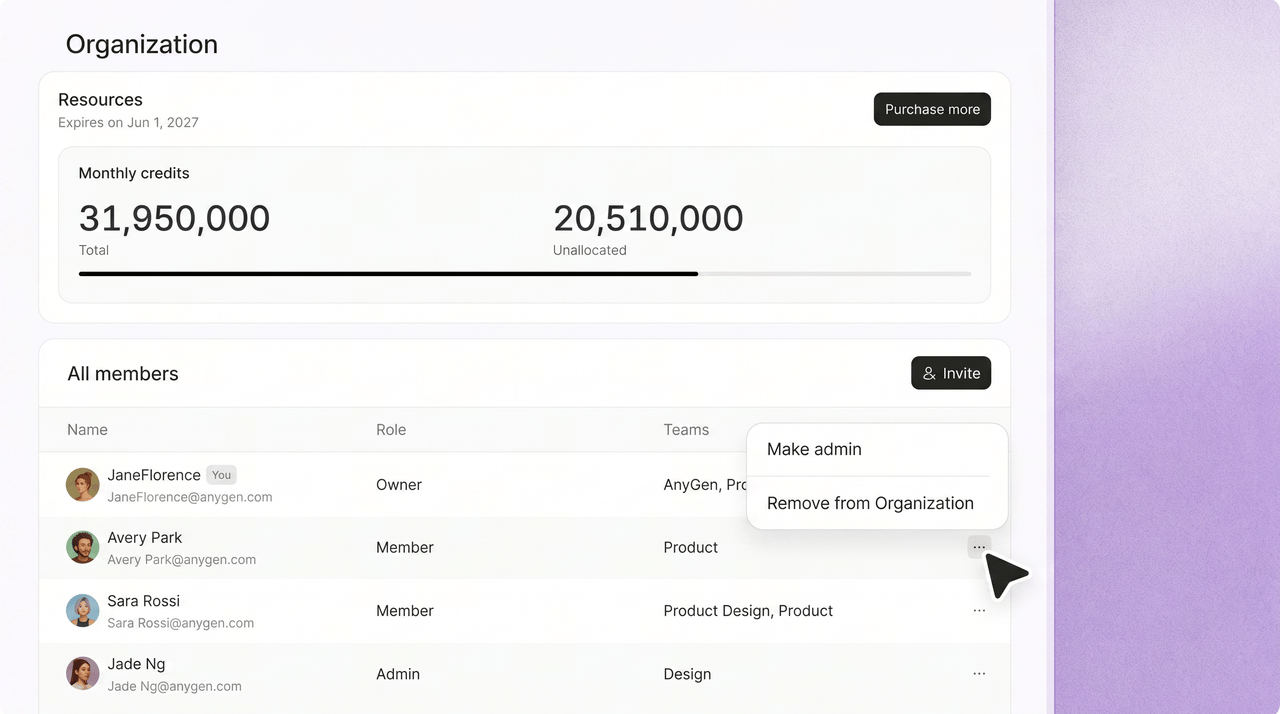
The member list shows each person’s name, role, and teams. Click … at the end of a member row to:- Set as Admin or Set as Member to update permissions.
- Remove from organization to remove the person from the entire organization.
The Owner row and your own row cannot be edited from this menu.
3. Invite members
Click Invite in the upper-right corner to invite new members at the organization level. For invitation methods, see section 6.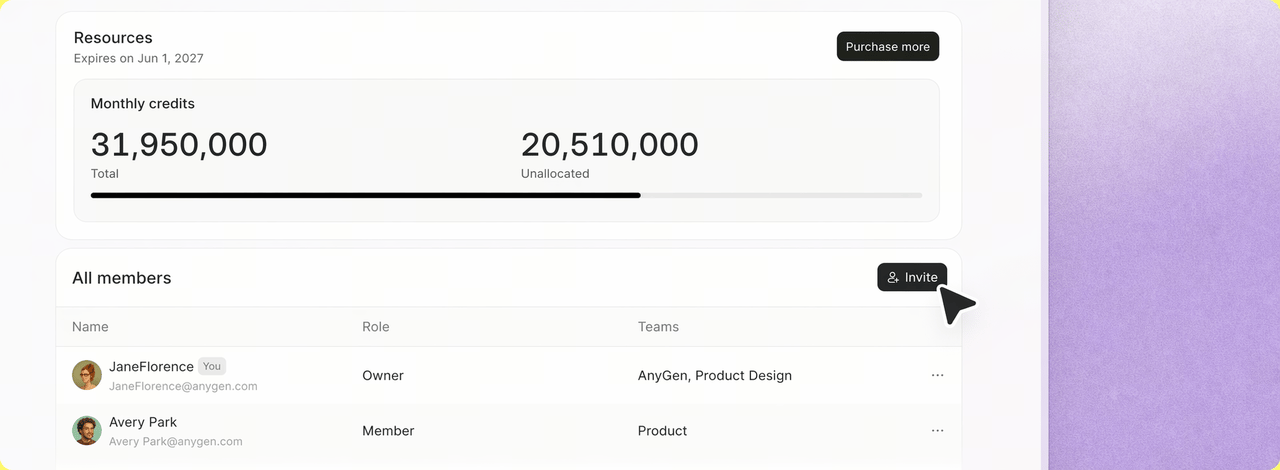
5. Manage teams
1. Create a team
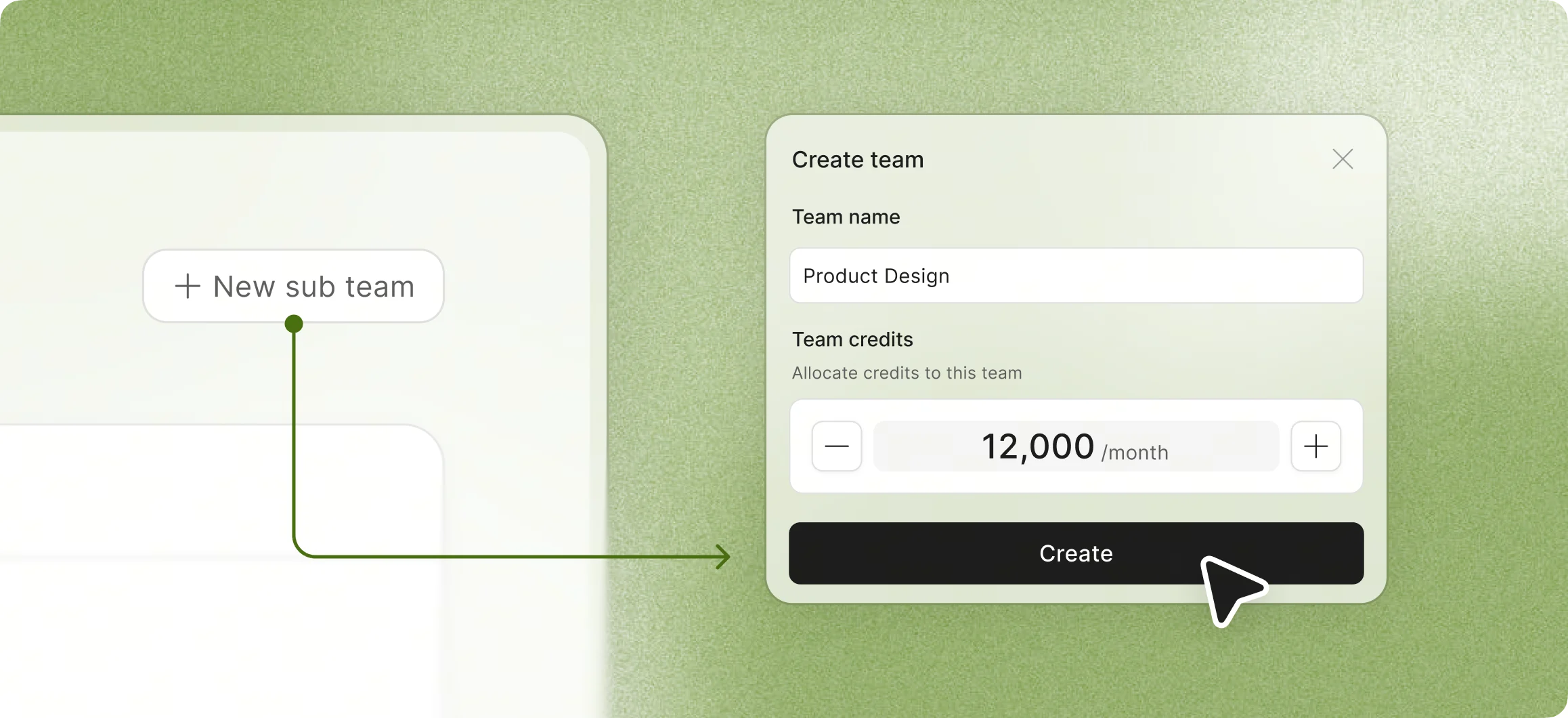
- Go to Teams, then click New sub team.
- Enter a team name and set the team’s monthly credit limit. This allocation comes from the organization’s credit pool and cannot exceed the available amount.
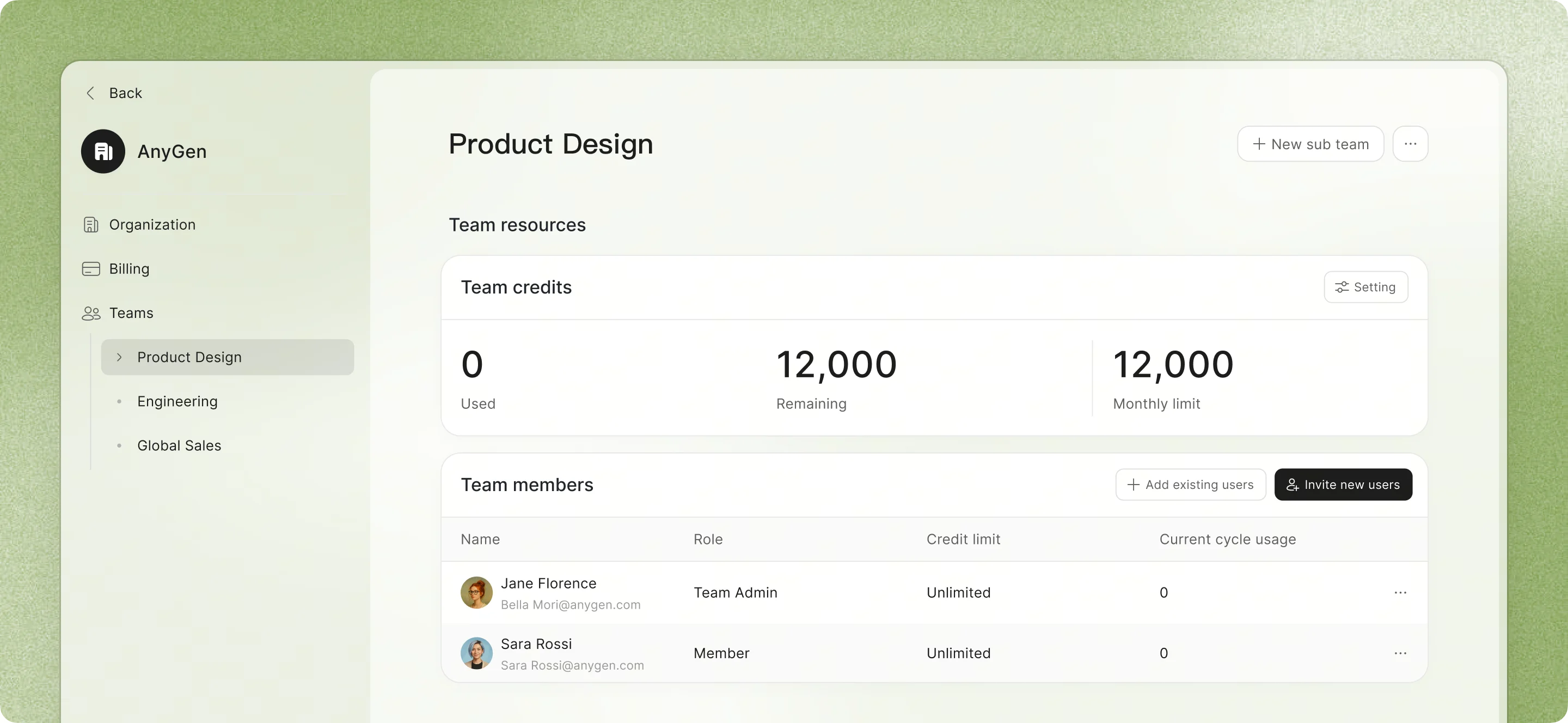
- After the team is created, you will be taken directly to the team details page so you can add members right away.
In the team list, each team shows its member count, available and total credits, and member avatars.
2. Team details: credits
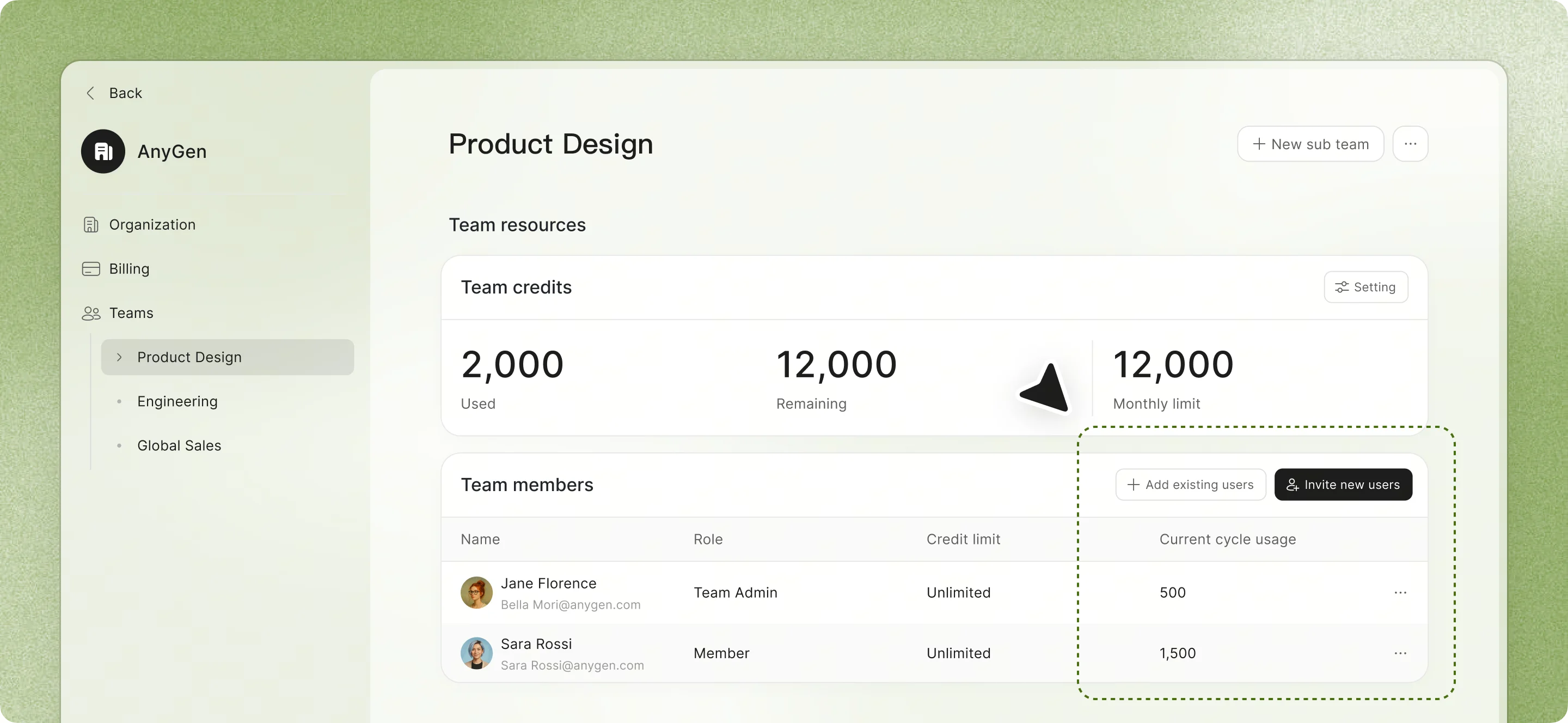
The Team credits card shows used, remaining, and monthly limit. Use the settings control in the upper-right corner to adjust the monthly limit at any time.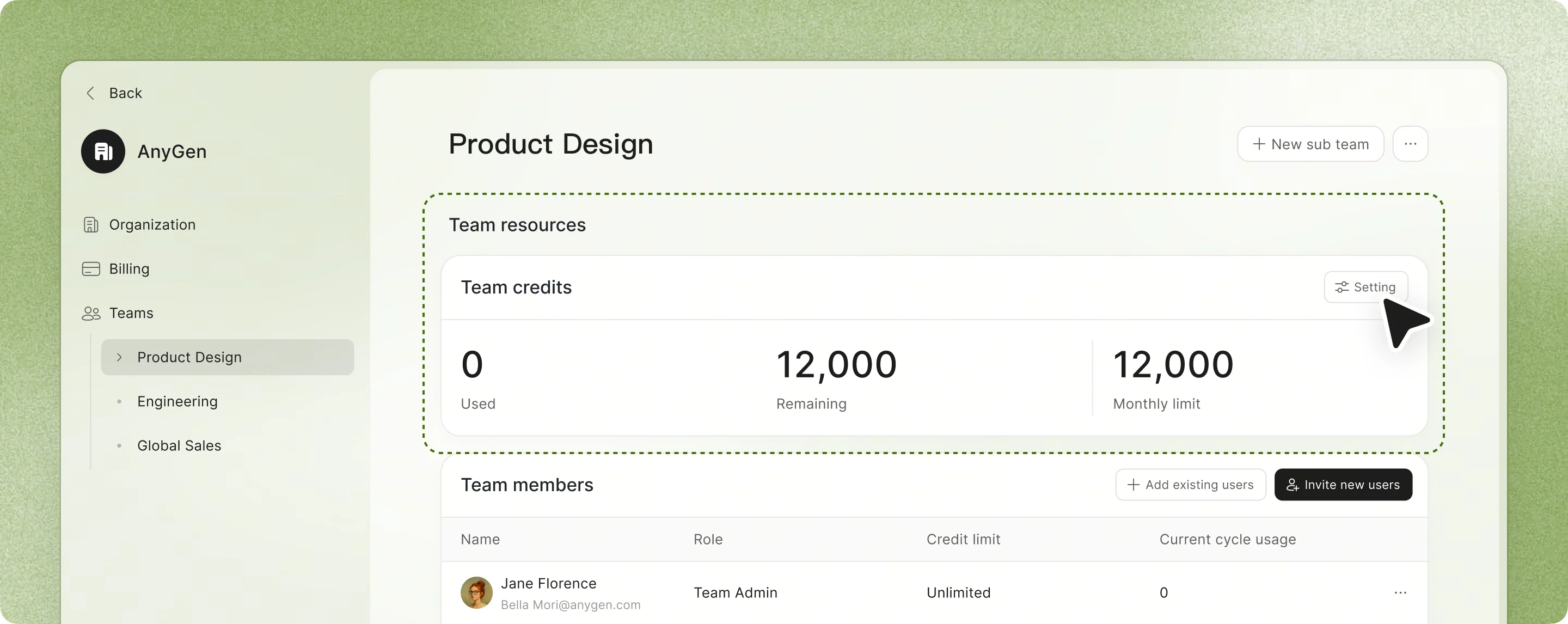
3. Team details: members
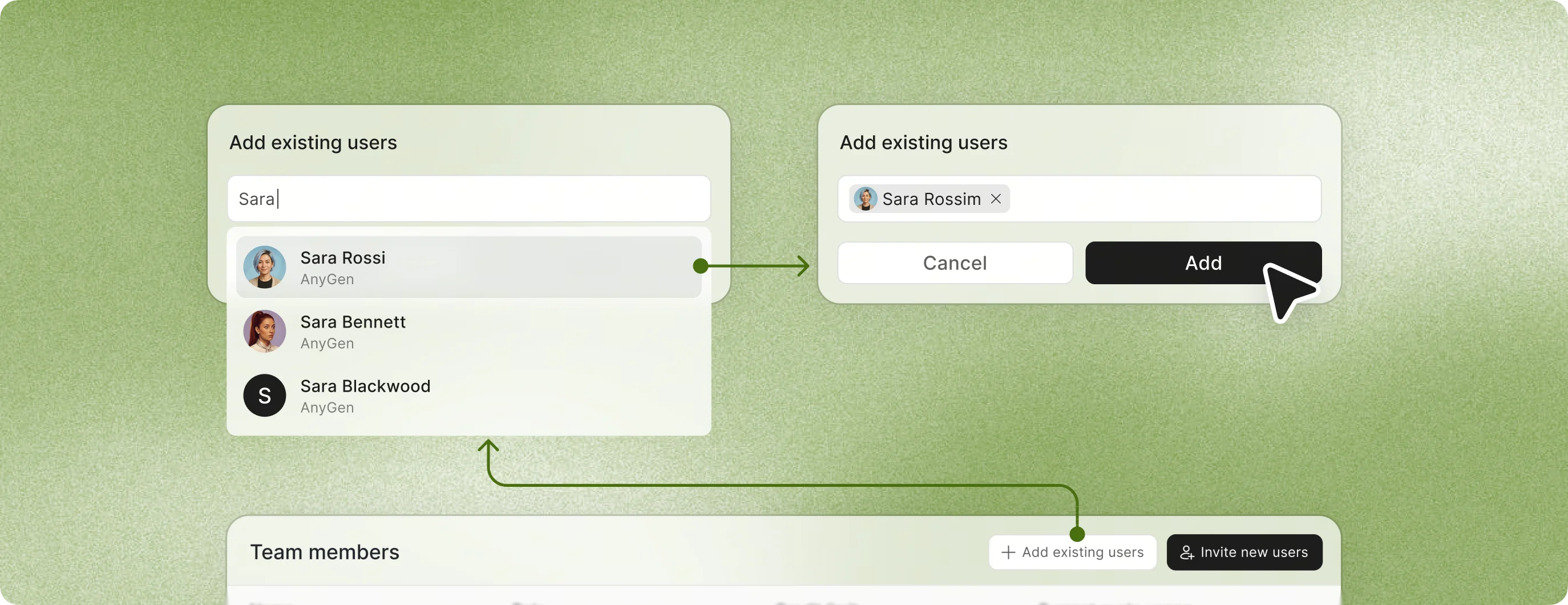
- Add existing users: Add people who are already members of the organization to this team.
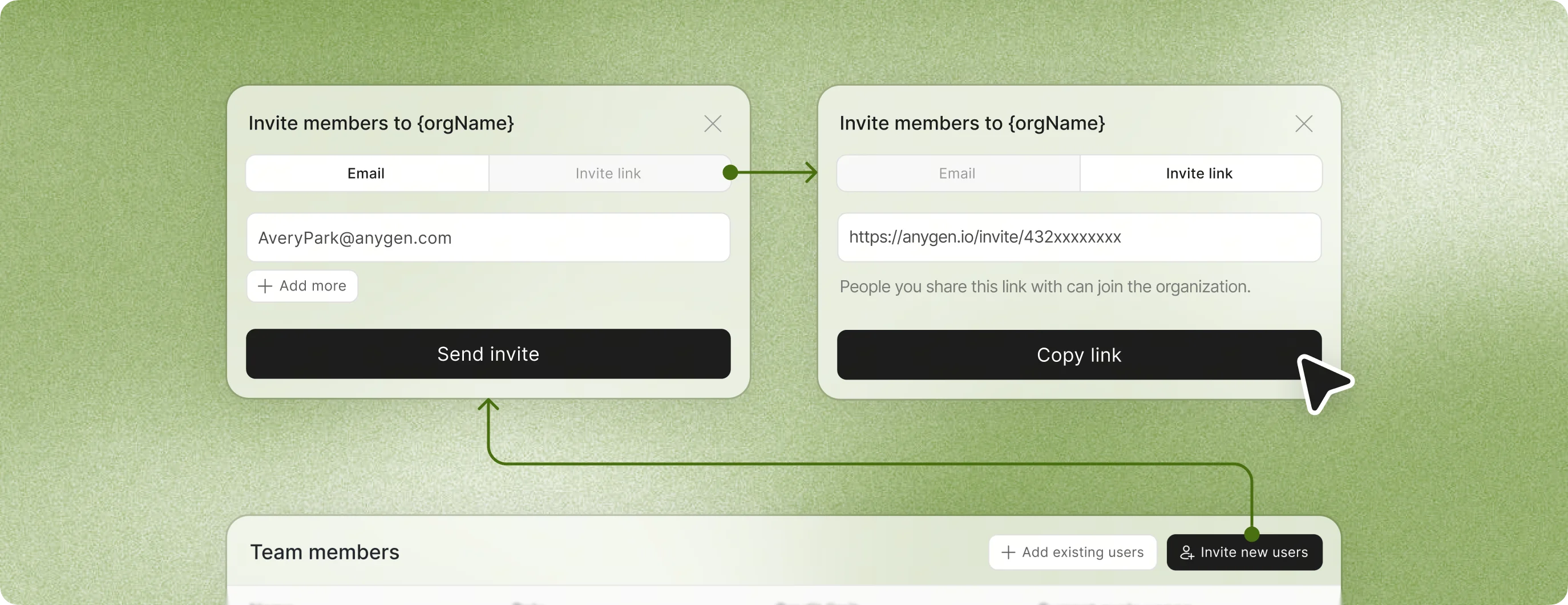
- Invite new users: Invite people who have not joined yet. Once they accept, they will be added directly to this team.
- The member list shows each person’s usage in the current cycle. Click … at the end of a row to remove the member from the team.
4. Rename or delete a team
On the team details page, click … in the upper-right corner, then choose Edit team name or Delete team.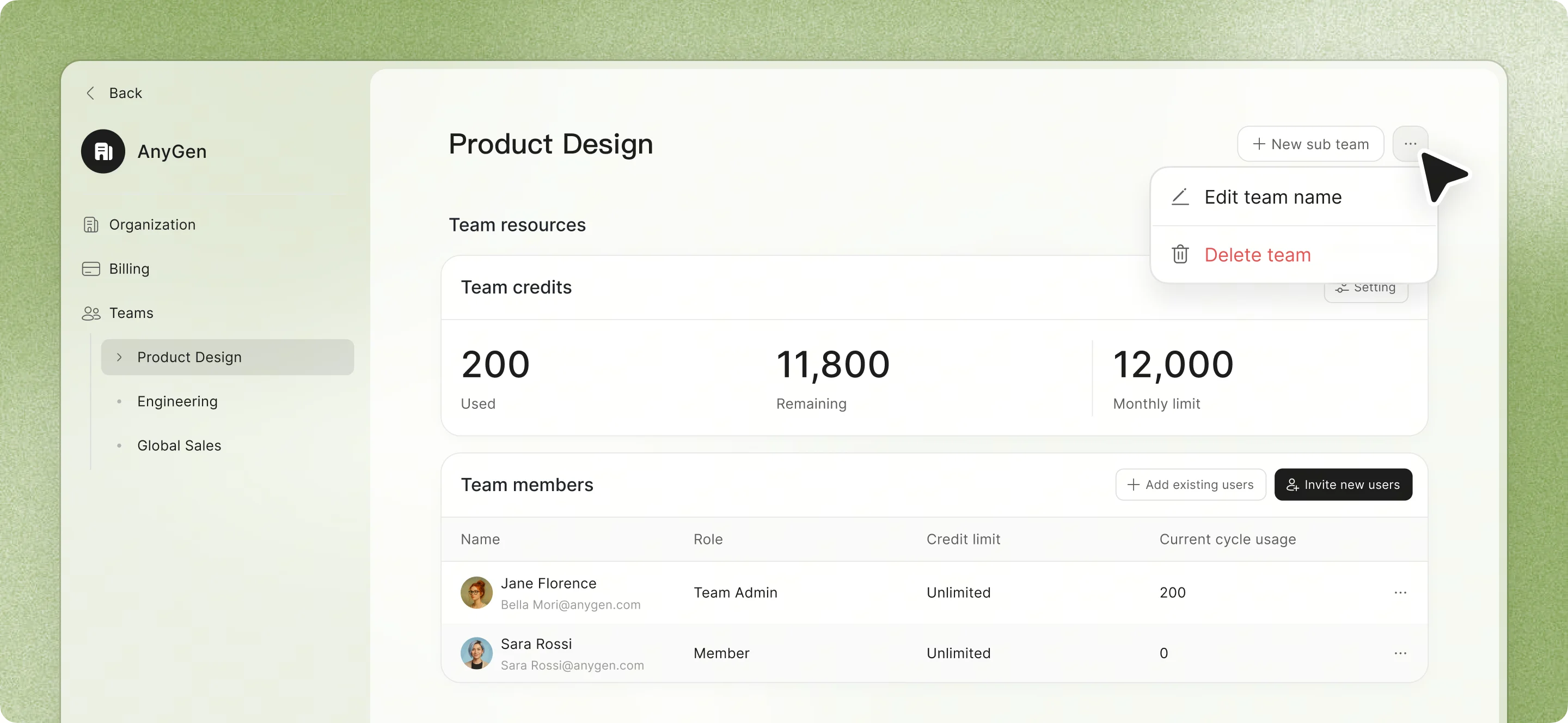
6. Two ways to invite members
After you click Invite or Invite new users, the invitation dialog gives you two options:- Inviting from the Organization page adds people to the organization. Inviting from Invite new users inside a specific team adds them directly to that team.
- After someone accepts an invitation, they are added automatically, and their credit source is switched to the corresponding team automatically. No manual switch is usually required.
7. Switch credit sources
A person may have personal credits and also belong to one or more teams. From the avatar menu in the lower-left corner:- Expand Using credits from.
- Choose Personal or one of your teams.
After accepting a team invitation, the team is usually selected as the default credit source automatically.
8. FAQ
Who can access the Admin Center?Organization Owners and Admins. Members do not see this entry. Can I change a team’s credit limit?
Yes. You can adjust it at any time from Team credits on the team details page. The combined limits of all teams cannot exceed the organization’s available credits. How are monthly credits calculated?
Monthly credits are calculated by billing cycle. If you need more, use Purchase more on the Organization page. The exact reset time follows your billing cycle. What is the difference between removing someone from a team and removing someone from the organization?
Remove from team only removes the person from that team; they remain in the organization. Remove from organization removes the person from the entire organization. Can I set a credit limit for an individual member? Yes. You can set a usage limit for a specific member.
This guide covers the AnyGen Business Plan capabilities that are currently available. If in-product wording or workflows change, follow the latest experience in the product.