
What are Agent Skills
Skill = turning one successful run into a reusable standard your agent can follow.A Skill defines how a class of tasks should be done—what inputs to use, what steps to follow, and how to structure the output. Skills are especially useful when:
- You repeat similar tasks and want consistent results
- Your deliverable must follow a strict format, checklist, or spec
- You want a pipeline (multi-step flow) rather than a one-off output
- Workflow: repeatable steps and decision rules for a specific type of work
- Output format: a consistent deliverable structure (sections, fields, templates)
- Tools & rules (optional): tools, constraints, and checks that keep the workflow on track (e.g., must cite sources, must output a table, must follow an approval gate)
A Skill is not “a longer prompt.” More precisely, it’s a reusable workflow + a stable output structure: once you capture a great run, you can reliably reproduce it for similar tasks.
Getting started with Skills
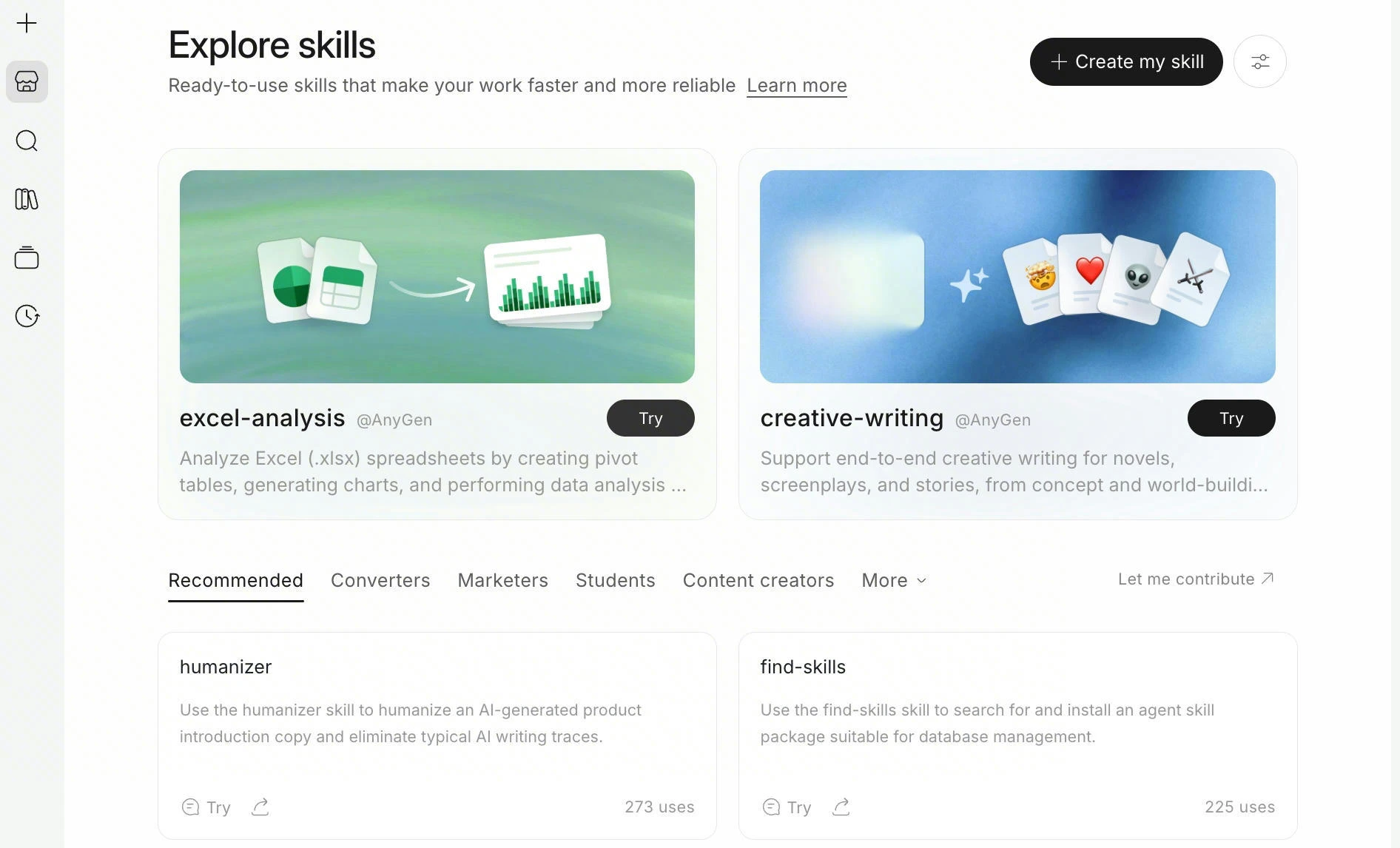
You can manage Skills from the Skills panel. Open it to view your added Skills, browse official Skills, and add new ones to your workspace.30-second quick start (fastest way to get your first win)Example:
- Explore skills panel → pick a Skill → click Try or Add
- Go back to your chat/task → upload a file or paste a link
- Say: “Use <Skill Name> to process this, and output in [your required structure].”
“UsePDF-Processingto extract tables from this PDF, and output:Summary / Key data / Risks / Action items.”
Adding Skills
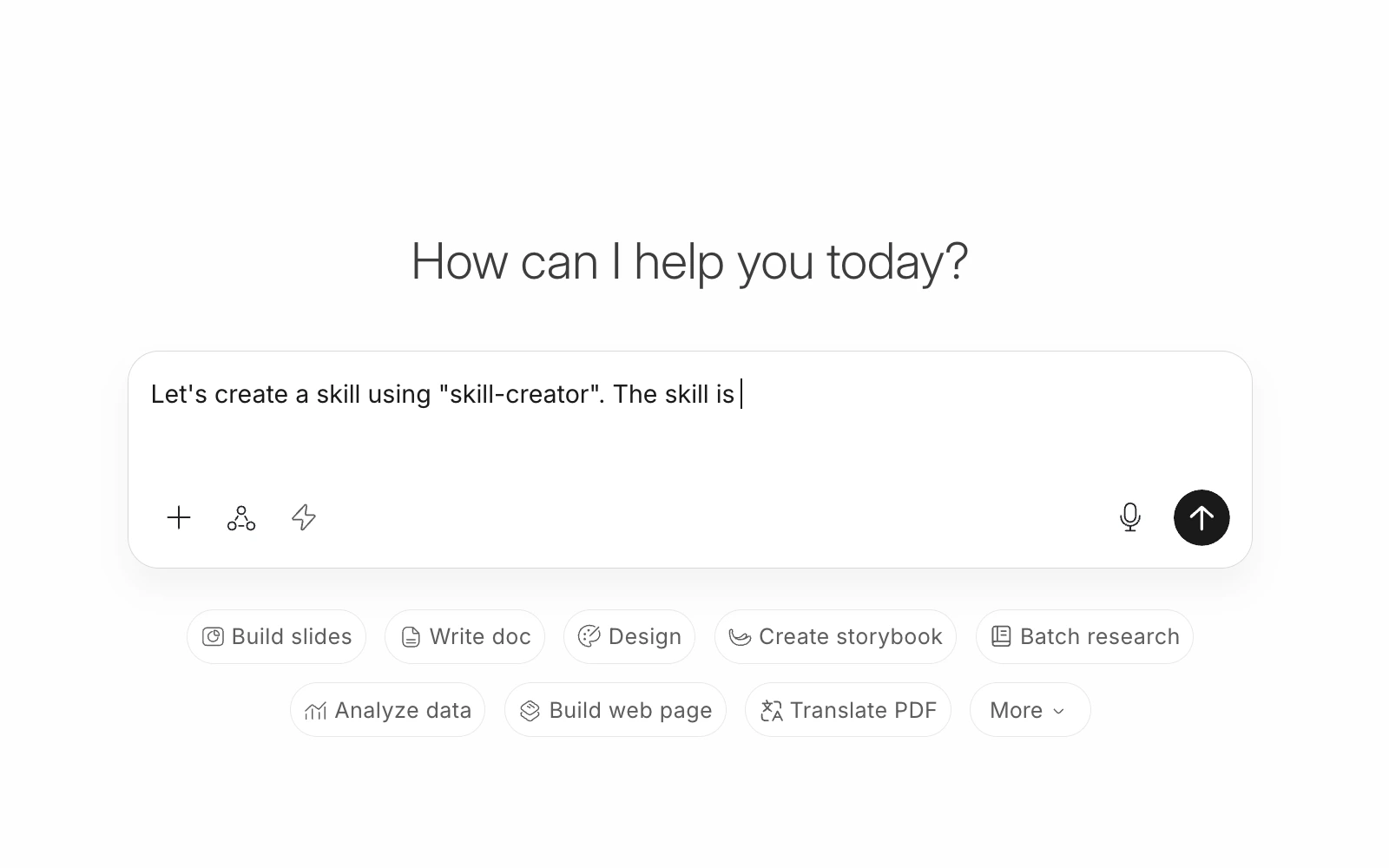
1) Create via chat (Create a Skill by describing what you want—two common ways) A) Describe the Skill directly (fastest)Tell AnyGen what the Skill should do, what inputs you’ll provide, and what the output should look like. AnyGen will generate a Skill draft and guide you through refining it.
Entry: in chat, say “I want to create a Skill…” (or Skills panel → Add → Create via chat)
Best for: turning a clear need or workflow into a usable Skill without writing specs from scratch. B) Package a successful run into a Skill (build as you go)
If you’ve completed a task and you’re happy with the result, ask AnyGen to package the current workflow into a Skill so you can reuse it next time.
Entry: during a task, ask AnyGen to save/package the current workflow as a Skill
Best for: high-frequency SOPs, fixed-format deliverables, review templates, and repeatable “good runs.”
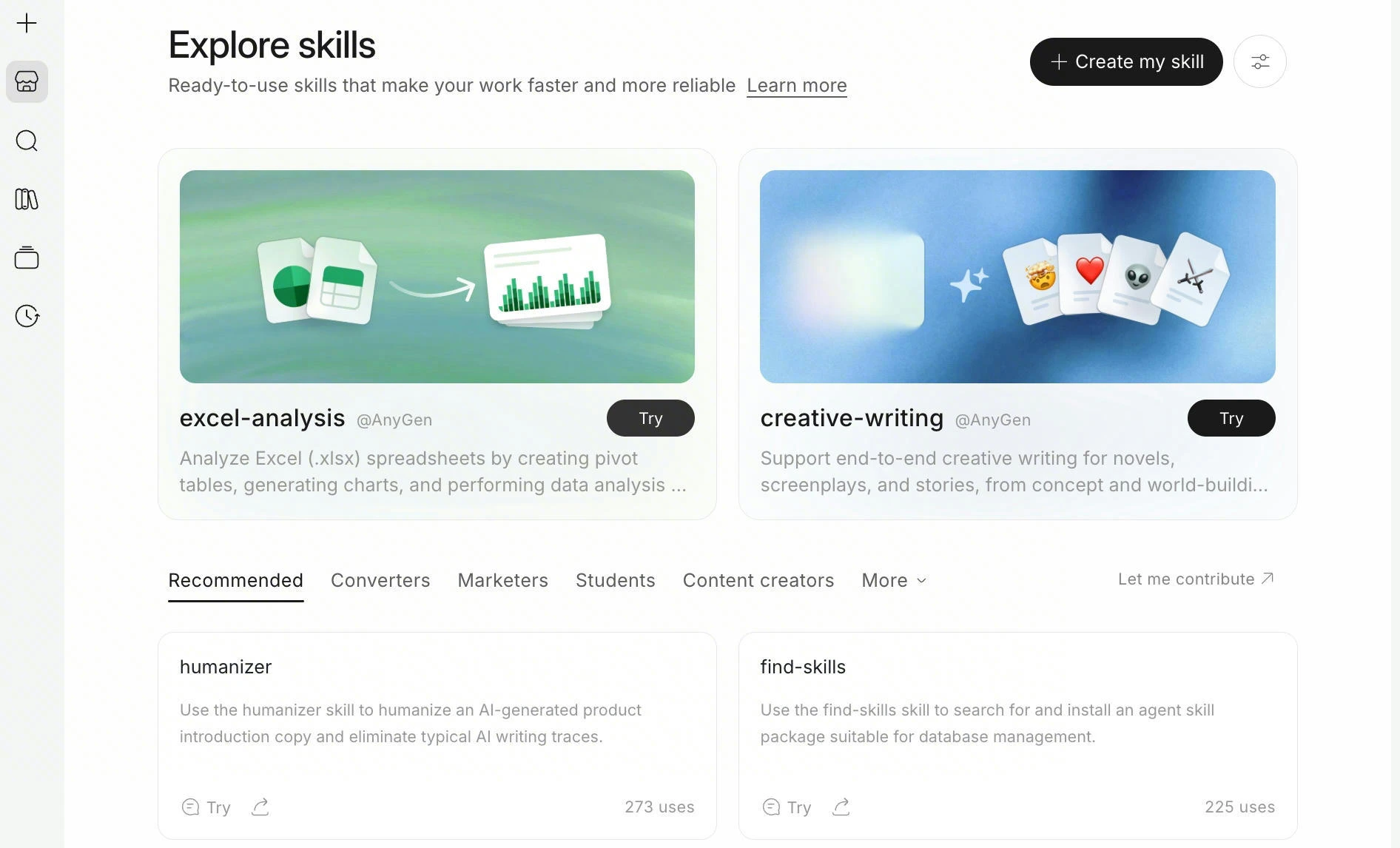
- Getting value quickly
- Exploring officially curated, high-quality Skills
- Learning how different Skills are structured and used
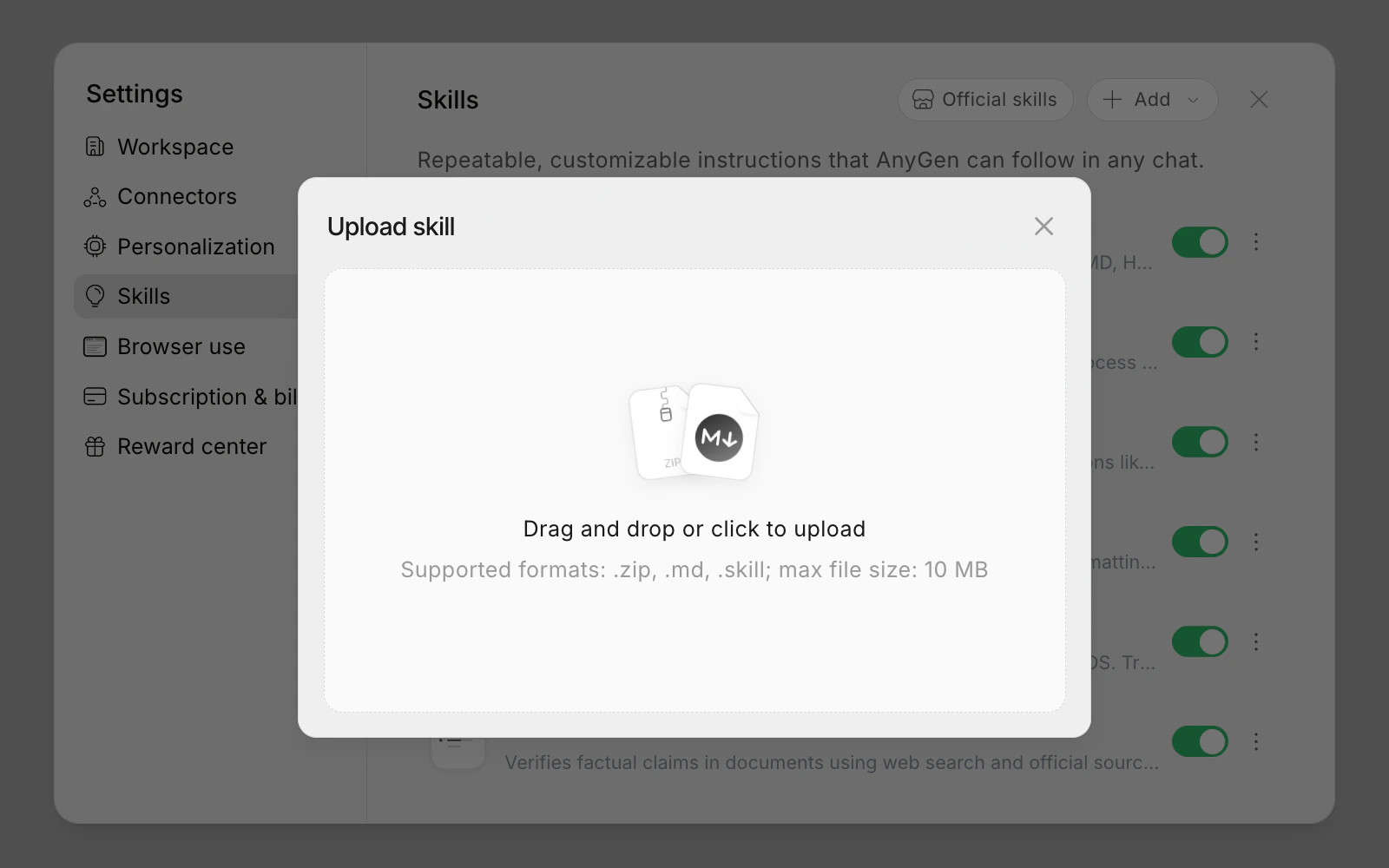
Path: Skills panel → Add (dropdown) → Upload skill
Supported formats:
.zip / .md / .skillBest for: importing a Skill for direct use or iteration.
Tip: if a Skill comes from someone else (especially if it includes scripts or external resources), review what it does and its boundaries before using it in production.
Path: Skills panel → Add (dropdown) → Write skill instructions
Best for: defining exactly how a Skill should be used and what the output should look like.
Using a Skill in a task
Once a Skill is added or created, you can use it in two common ways:- Natural-language request (default): describe your goal and provide inputs; enabled Skills will be used when relevant.
-
Explicit Skill call (more predictable): write
Use <Skill Name> ...when you want a predictable workflow or a fixed output structure.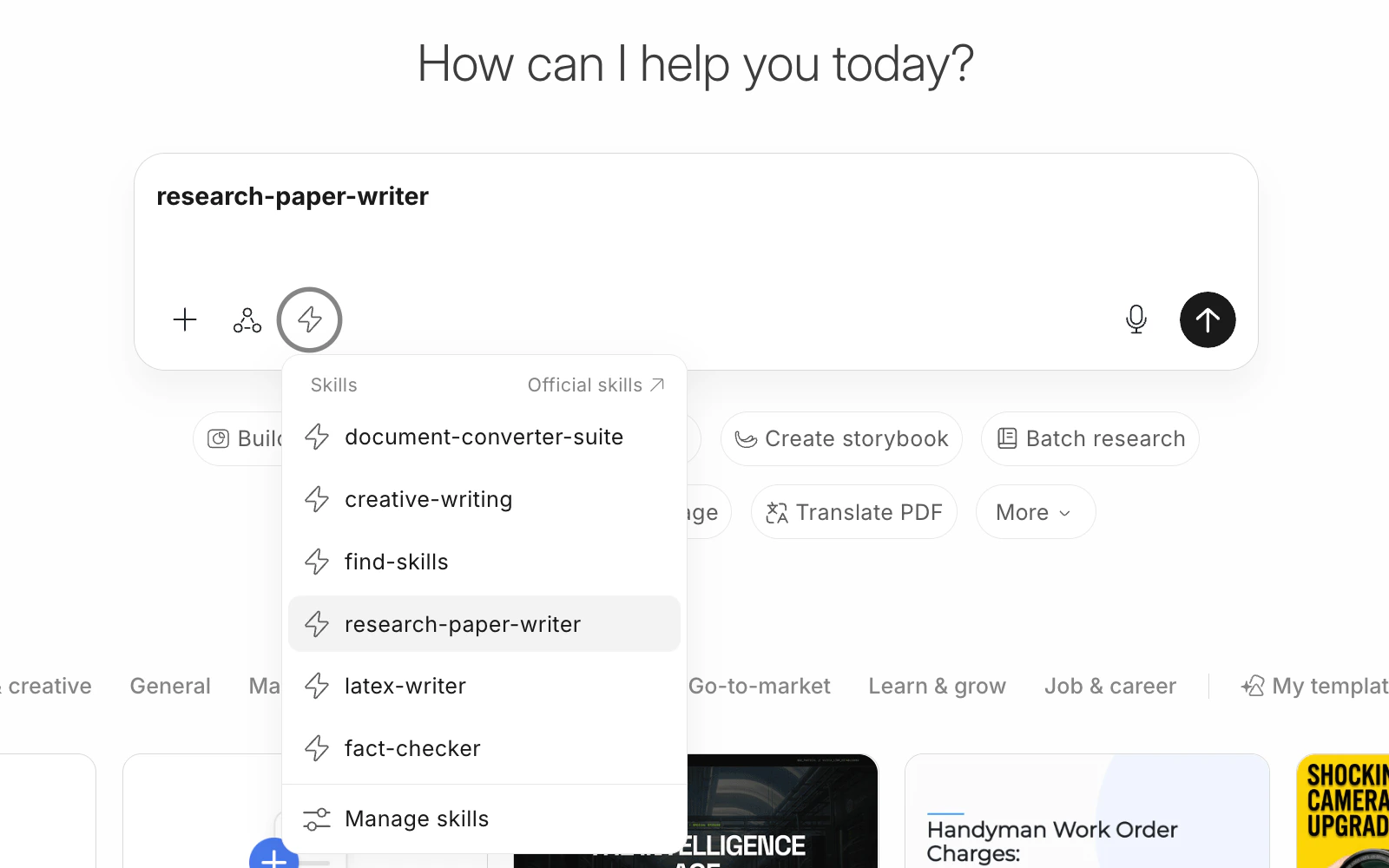
Use cases
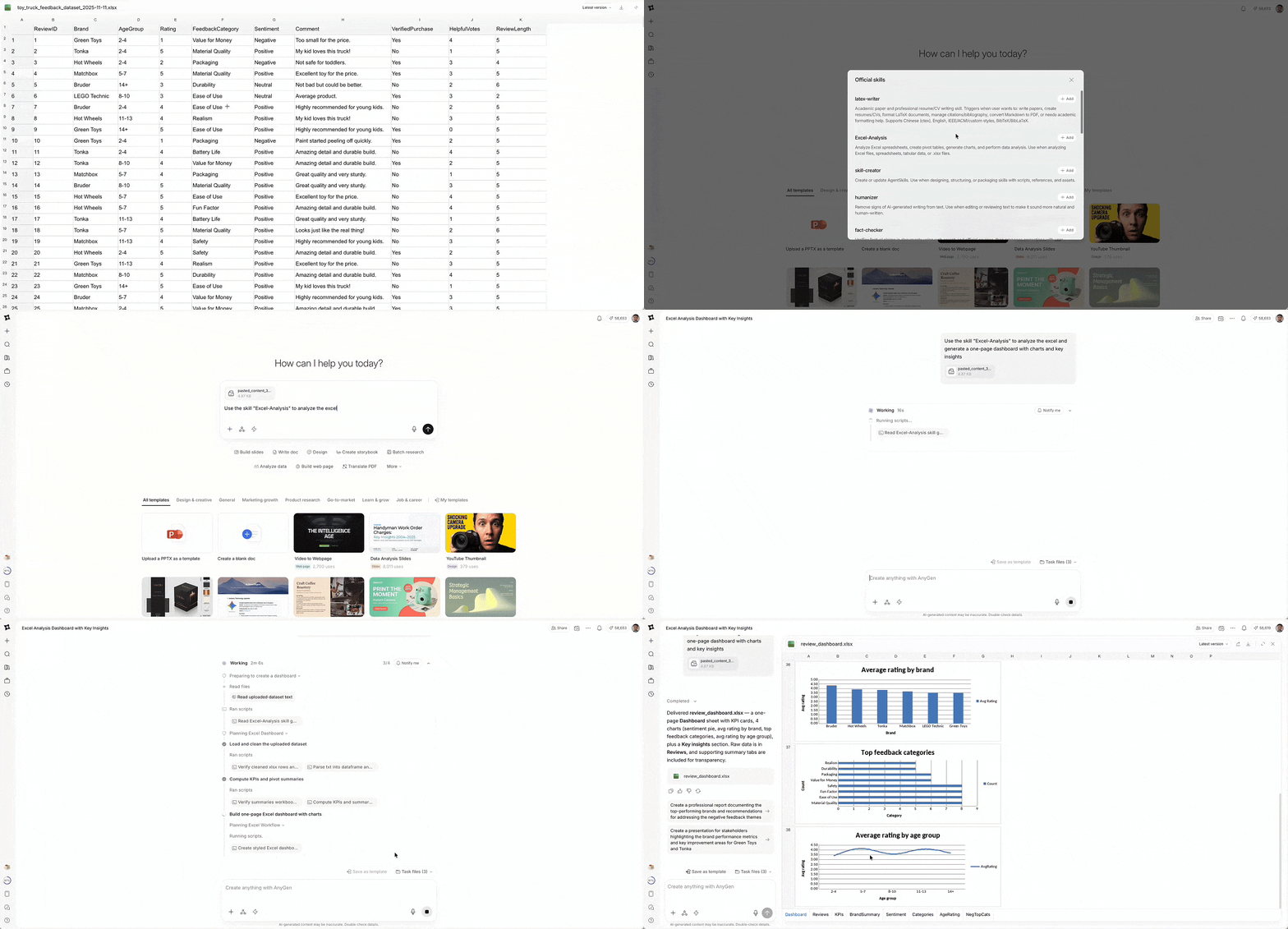
1) Excel-Analysis (spreadsheet insights)
- Use when: you have an XLSX and want to quickly understand growth drivers, anomalies, and next steps
- Pain solved: hard to turn numbers into conclusions; slicing/pivots take time; outputs are inconsistent
- Typical output: key insights + anomaly explanations + suggested breakdowns (optionally with charts/dashboard recommendations)
Excel-Analysis to analyze this XLSX and deliver: 5 key insights / Top anomalies / 3 recommendations in a fixed structure.”
2) PDF-Processing (PDF extraction and structuring)
- Use when: you have a PDF report/contract/proposal/research doc and want to turn it into usable information fast
- Pain solved: tables are hard to copy, information is scattered, manual organizing is slow, key points are easy to miss
- Typical output: structured extraction (tables + text) + key points + conclusions + action items
PDF-Processing to extract all tables and key points from this PDF, and output: Summary / Key data / Risks / Action items.”
3) document-converter-suite (format conversion)
- Use when: you need to convert between PDF/DOCX/PPTX/XLSX/MD/HTML for editing, reuse, or publishing
- Pain solved: inconsistent formats increase collaboration cost; copy-paste is messy; repeated manual conversions before delivery
- Typical output: cleaner, editable artifacts (e.g., PDF→DOCX, PPTX→Markdown outline)
document-converter-suite to convert this PPTX into a Markdown outline: Slide title / Bullets / Speaker notes.”
FAQ
Q: I added a Skill, but it didn’t trigger. What should I do?
Q: I added a Skill, but it didn’t trigger. What should I do?
A: Two reliable approaches:
- Explicitly say:
Use <Skill Name> … - Make inputs and goals match the Skill more clearly (e.g., file type and required output structure).
Q: Where should beginners start?
Q: Where should beginners start?
A: Start with high-frequency essentials like document conversion / PDF extraction / image processing. Once you notice a workflow you’ll reuse, package it as your first Skill.
Q: How do I know a task is worth turning into a Skill?
Q: How do I know a task is worth turning into a Skill?
A: It’s a great candidate if any of these are true:
- You repeat it weekly/monthly
- You need a fixed deliverable structure (fixed fields/templates)
- You keep re-explaining steps and often rework alignment
Q:What should I watch out for when importing someone else’s Skill?
Q:What should I watch out for when importing someone else’s Skill?
A: Quickly check three things:
- Intended and non-intended use cases (to avoid misuse)
- Whether it calls external resources or executes scripts (review first if yes)
- Whether the output matches your needs (structure, tone, fields)
Q:Will enabling Skills change my agent behavior or conflict with other Skills?
Q:Will enabling Skills change my agent behavior or conflict with other Skills?
A: A Skill makes the agent more procedural and more stable for specific tasks, but it won’t change your overall workflow.If you enable multiple similar Skills in one task, you may see overlap or style inconsistency. The simplest fix is:
- Explicitly say
Use <Skill Name> …to lock the one you want - Or temporarily disable/remove the Skills you don’t need before running
Q:Can I use multiple Skills together?
Q:Can I use multiple Skills together?
A: Yes. You can enable multiple Skills so they collaborate (e.g., process files → analyze → generate content).If you want tighter control, specify the order or division of labor (e.g., “first A extracts, then B analyzes, finally C drafts”).
Q: Was this helpful?
Q: Was this helpful?
A: Go to our Discord channel #general-feedback to share your suggestions:Join Discord