
Documentation Index
Fetch the complete documentation index at: https://docs.anygen.io/llms.txt
Use this file to discover all available pages before exploring further.
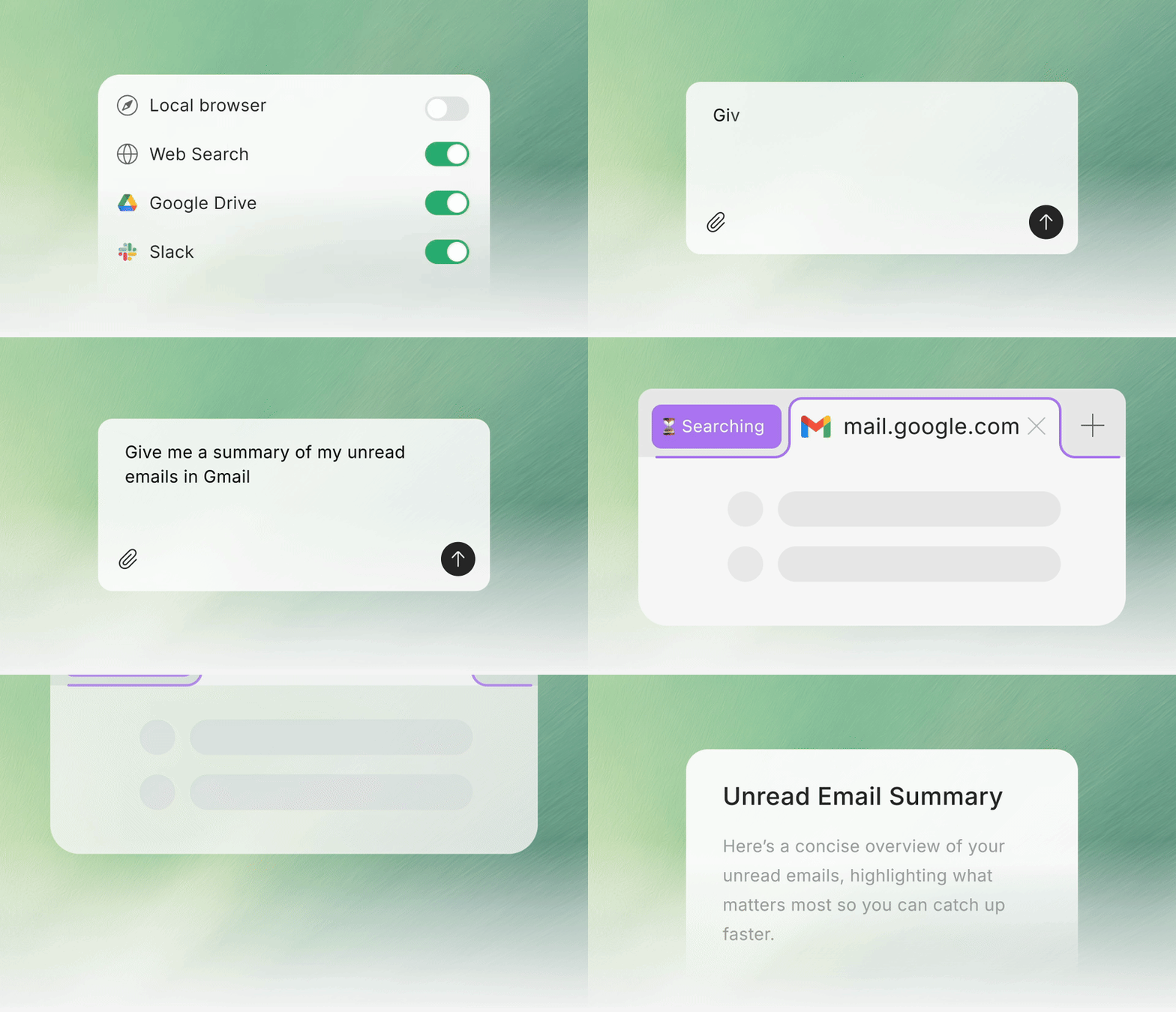
Why you might need it
Sometimes results are off ?
Not because the model is weak, but because it’s missing the real context that lives in your browser:- Pages are long and noisy → copying and pasting is slow (and easy to miss details)
- Content is dynamic or buried behind UI → manual extraction is painful
- The source of truth is the exact page you’re viewing → accuracy depends on that view
Use the current page as context
Summarize, rewrite, translate, compare, or draft based on what you’re viewing.
Extract structured info
Turn page content into tables, key points, checklists, or takeaways.
Stay aligned with what’s on your screen
Less copy/paste, fewer follow-up edits.
Stuck at login or verification?
When a task needs content behind a login or access checks, running through a cloud environment can get blocked or interrupted. AnyGen Browser Operator_ runs through your local browser session using your local network and real IP, which helps tasks stay uninterrupted on sites with strict access controls._Fewer interruptions
Fewer stops from access checks or blocked cloud IPs.
Uses your existing session
Leverage the sites you’re already signed into — without repeatedly re-authorizing.
Safety & control
Password protection
AnyGen Browser Operator does not read, collect, or upload your passwords.When you sign in, it doesn’t access or store password inputs.
You stay in control
You stay in control: enable it only when you need itToggle anytime: turn My browser on/off in the task, or disable it in Connectors
Get started
1) Download & enable
Go to AnyGen Home → Connectors, find My browser, then Install and enable it.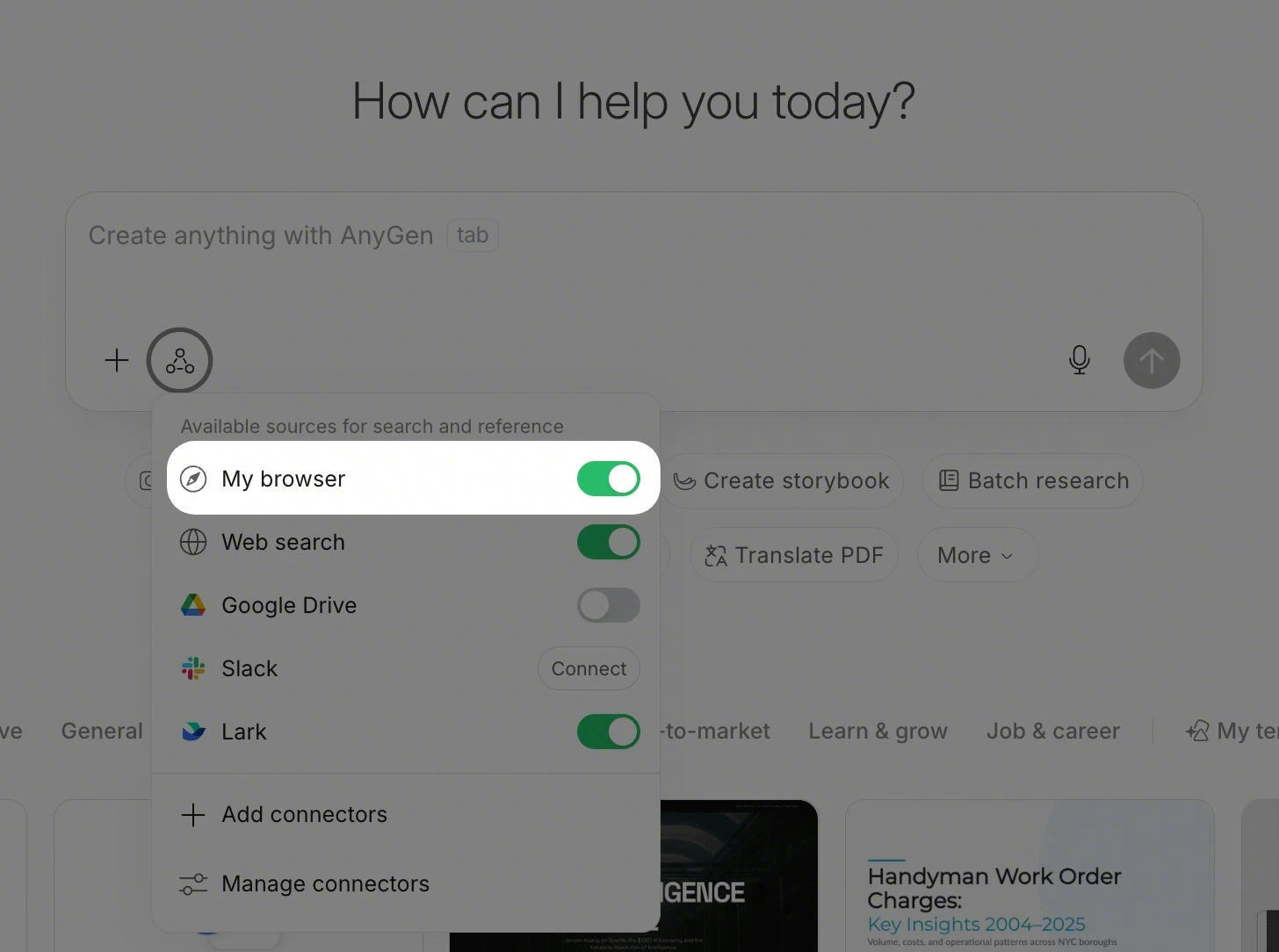
2) Turn on “My browser” in a task
In any AnyGen task:- Open the sources menu
- Toggle My browser on
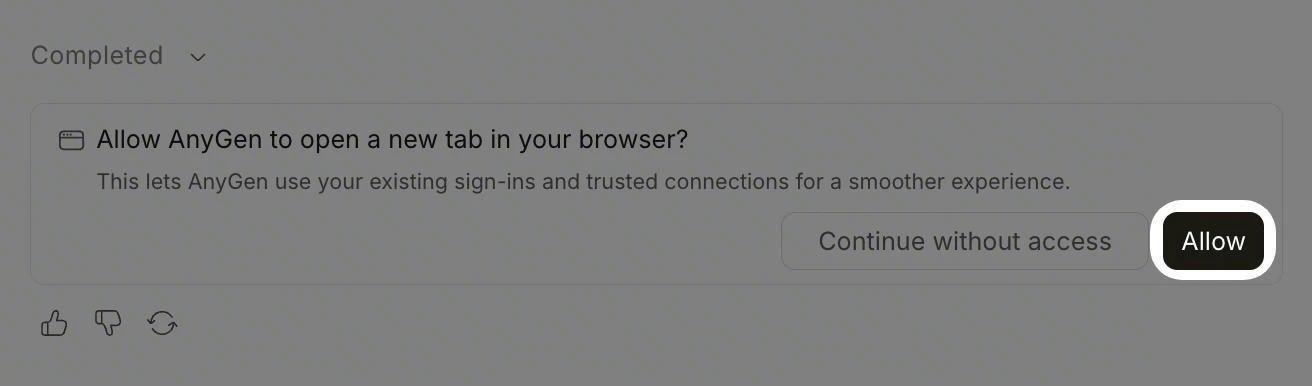
- You’ll see an in-task prompt like:
Allow AnyGen to open a new tab in your browser?
This lets AnyGen use your existing sign-ins and trusted connections for a smoother experience.
- Click Allow to grant access (or choose Continue without access)
3) Optional: Install from the Chrome Web Store
Example prompts
(Copy and paste these into AnyGen)- Email triage: “Open my email, find messages I should reply to this week, draft 5 short replies, and assign a priority.”
- Internal systems: “In my logged-in Lark/enterprise system, find last week’s approval records, extract key fields, and summarize them in a table.”
- Job search: “On the listings page, filter by Remote / Full-time / Salary range, extract the top 20 roles, and write a comparison summary.”
- Order lookup: “Open my orders page, find the monitor order from last month (order number + invoice info), and format it as copy-ready text.”
- Link roundup: “For this list of links, open each page and extract title/author/date/key points, then generate a one-page summary.”
FAQ
Does it cost extra?
No. AnyGen Browser Operator is available to all users.Can AnyGen see my passwords?
No. AnyGen Browser Operator does not read, collect, or upload your passwords.Can I turn it off anytime?
Yes. Toggle My browser off in the task sources menu, or disable it in Connectors.When is it most useful?
Tasks that require:- an existing login session
- cross-site workflows
- repetitive web steps
- extracting page data into structured outputs